Several walks
A walk is one path through the history of your repository, with its own notes and slides. One class can have several walks. For example, one walk tells the whole story of the project, step by step, and a second walk covers only the tests. A table of contents lists the walks, and a menu at the left of the step bar changes the walk in every window.
A walk is a narrative or a tutorial. A narrative goes from tag to tag. A tutorial also stops at each small commit between two tags, and the class makes the step one move at a time.
To build a class with several walks, see Build a class with several walks. What a narrative and a tutorial need lists what each kind of walk needs, as checklists.
Try it on the demo. In a clone of timewalk, run just demo-walks. The demo has two walks. “The demo, step
by step” has all five steps, and “Only the checks” has two of them. The class timewalk-test has nine
walks, five of them tutorials. Four of its walks are small walks, taken out of its big tutorial.

The table of contents
The table of contents is a TOML file, toc.toml, in the class folder. It holds one [[walk]] table for
each walk. The first walk is the default.
[[walk]]
id = "story"
title = "The project, step by step"
description = "How the project was built, one tagged step at a time."
kind = "narrative"
notes = "notes.md"
slides = "slides/slides.toml"

[[walk]]
id = "tests"
title = "Only the tests"
description = "Three steps of the project: the code, its tests, and a fix."
kind = "narrative"
folder = "walks/tests"            # its notes.md, and slides/slides.toml, are in this folder
steps = ["step-01", "step-02", "step-05"]| Key | Holds |
|---|---|
id |
The name of the walk, for --walk. Letters, digits, - and _ |
title |
What the menu shows. Default: the id |
description |
Optional. What the walk is about, in a sentence or two. The status band shows it at the first step of the walk. See The status band |
kind |
"narrative": the tagged steps, and nothing between them. "tutorial": the tagged steps, and the small commits between them. See Tutorial walks. Default: "narrative" |
notes |
The notes file of the walk |
shared |
Optional. In a tutorial with notes of its own, the notes of the big tutorial, where its include lines take the sections of its moves. Not with select, steps or intro. See A walk with notes of its own |
slides |
The slides manifest of the walk |
folder |
A folder for the walk. Its notes are notes.md, and its manifest is slides/slides.toml, in this folder |
steps |
Optional. Some of the steps, by name. Without it, the walk has every step. A tutorial cannot have steps. It takes select |
select |
Optional. The steps, the moves and the ranges of moves that the walk takes from a bigger walk, in the order of the history, for example ["step-04", "step-05.3..step-05.6"]. An entry can have a title, for example { range = "step-05.3..step-05.6", title = "Types" }. Give steps or select, not both. See Take a small walk out of a big one |
intro |
Optional. A Markdown file about the walk. The notes column shows it at the first stop of the walk, under “About this walk”. The copies of the walk put it before the first step, in place of the text of the notes before the first step. See The intro of a walk |
loose |
Optional. In a tutorial, the files that do mode compares by the names of their packages, for example ["pyproject.toml", "uv.lock"]. A glob is also good. See Files that match by the names of their packages |
tags |
Optional. A glob for tags of its own, for example "parts-*" on another branch. Give steps or tags, not both |
setup |
"manual": you run just setup yourself at each step. The only value for now |
moves |
In a tutorial, the mode that it starts in. "do": the learner makes each move by hand. "watch": timewalk checks out the commit of each move. See Do mode and watch mode. Default: "do" |
sync |
In a tutorial, true or false. With true, the slides and the moves follow each other. Default: true |
timewalk reads every path from the folder of toc.toml. Give a walk folder, or give it notes and
slides. A walk can also have no notes, or no slides. In a folder, notes.md and slides/slides.toml are
each optional.
A class folder with several walks
Keep the files of each walk in its own folder. The default walk can stay at the top, as in a class with one walk:
my-class/
  toc.toml
  notes.md                    the default walk
  slides/slides.toml          its slides, and the slide files
  walks/
    tests/
      notes.md
      slides/slides.toml      it can name ../../../slides/talk.md#3
A manifest of one walk can use the slide files of another. Write the path from the folder of the
manifest, for example ../../../slides/talk.md#3. The page serves slides only from the slides folders of
the walks.
Put every slide file there, and every picture that a slide shows. Keep each manifest in a slides
folder of its own, not at the top of the class folder. Keep the notes out of the slides folders. The page
never serves the notes or toc.toml, and the checks report a layout that would. See Slides and documents for the entries.
Start timewalk with a table of contents
Give --toc in place of --notes and --slides:
timewalk ~/code/project --toc my-class/toc.toml
timewalk ~/code/project --toc my-class/toc.toml --walk tests
timewalk starts on the first walk, or on the walk that --walk names. Each walk names its own tags, so
--toc does not go with --tags or --commits.
Change the walk
Choose a walk in the menu at the left of the step bar. Every window changes to the steps, the notes and the slides of that walk.
- The menu shows only when the table has two walks or more. If the table has both kinds of walk, the menu puts them in two groups, Narratives and Tutorials. Each group keeps the order of the table.
- A label beside the menu says the kind of the walk on show, Narrative or Tutorial.
- In a tutorial, a switch beside the label changes the mode, Do or Watch.
- The Room window has no menu. It shows the title of the walk, with its kind, and for a tutorial its mode, for example “(tutorial, watch mode)”.
- The status band under the step bar names the kind of the walk and the step. At the first step of
the walk, it also shows the
descriptionof the walk. A sentence after it says what the kind of walk asks of you. See The status band.
If the bar has no room for the menu, its buttons move to a second row.
A change of walk moves the replay copy, by the same rules as a move between steps:
- If the replay copy has edits, the move keeps them on a saved branch, named after the step on show, and does not ask. See Live edits.
- timewalk remembers each walk. It keeps the step, the move, the slide and the scrolls of each walk. When you come back to a walk, the page shows the place where you left it.
Save in the notes column writes the notes file of the walk on show. The PDF button makes the PDF of the walk on show.
The checks
timewalk checks every walk when it starts. An error stops timewalk, and a warning prints and does not.
Run the same checks alone with timewalk-check:
timewalk-check ~/code/project --toc my-class/toc.toml
timewalk-check ~/code/project --notes notes.md --slides slides/slides.toml
The second form checks a class with one walk and no table. timewalk-check prints one line for each
problem, and exits with code 1 when it finds an error.
| Problem | Gives |
|---|---|
| A notes section or a slides entry for a step that is not in the walk | An error |
In a tutorial, a move with no ### section, a ### section for no move, or sections out of the order of the commits |
An error |
A moves value other than "do" or "watch", and other mistakes in toc.toml |
An error |
A step with no entry in slides.toml. Give each step one slide or more |
An error |
| A slide file that does not exist, or that is not in a slides folder of a walk | An error |
| A picture that a Markdown slide shows from outside the slides folders | An error |
| A manifest at the top of the class folder, or notes in a slides folder | An error |
| A slide number past the end of its Markdown file, or a page past the end of its PDF | An error |
| A notes file or a manifest inside your repository or its replay copy | An error |
| A step with no section in the notes | A warning |
A block ::: do or ::: watch that is not closed, a heading in a block, or a block in a block |
An error |
In a tutorial, a move whose section has no command, in one mode or in both. A do$ line does not count |
A warning |
In a tutorial, a do$ line in a block ::: do or ::: watch, before the first move of a step, or after the commands that check its move. In a narrative, any do$ line |
A warning |
A fenced div of another name, for example ::: callout-note, or a line ::: that closes no block |
A warning |
In a tutorial, a diff item for a file that its move does not change, or a file item for a file that is not in the commit of its move |
A warning |
In a tutorial, a show: line that is no longer in the change of its item |
A warning |
A show: line that quotes a line with a backtick in it in one backtick, and not in two |
A warning |
| In a tutorial, an item that names a move that is not in the walk | A warning |
An entry of loose that no move of the walk changes |
A warning |
A public cue, for example > Try:, in the blockquote of a private cue, for example > Say:, in the notes or in the intro file of a walk |
An error |
| A slide file in a slides folder that no walk uses | A warning |
| In a walk with notes of its own, a mistake in its stops or its include lines | An error or a warning. See The checks of a walk with notes of its own |
A picture that a Markdown slide shows counts as used.
In a tutorial, the checks read the items, the show: lines and the anchor commands once for each mode.
Each mode has the text outside the blocks and its own blocks. A warning for one mode names it, for
example “step-02.1 has no command in watch mode”. See
Blocks for one mode.
Tutorial walks
A tutorial walk stops at every small commit between two steps. Each small commit is a move. A tutorial has one or more steps, and each step has zero or more moves. The class makes the moves of a step one at a time, and reads the notes of each move.
The moves of a step are the commits after the step before it, up to the commit of the step, on the first-parent line. The first-parent line is the line of commits that git follows back from a commit through the first parent of each merge. The last move is the commit of the step, with its tag. A step of one commit has no moves, and the first step has none.
timewalk names a move by its place, so its subject can say anything, or nothing. jj new makes a move with
no subject. A subject such as step-02.1: a test of counting helps you read git log. The title of the move
comes from its ### heading in the notes, or else from its subject.
step-01: count the words              tag step-01
step-02.1: a test of counting         move step-02.1
step-02.2: a test of an empty text    move step-02.2
step-02: the tests pass               tag step-02, move step-02.3
A tutorial takes every tag of its glob, so it cannot have steps. For a tutorial on one part of the
history, name its steps and moves with select. See
Take a small walk out of a big one.
The notes of a tutorial
Give each move a ### step-NN.k Title section, in the order of the commits. Here NN is the number of
the step and k is the number of the move. A move section holds these parts:
- The problem, and the change that solves it, for both modes. See Write for a reader who has never heard of timewalk.
- The change, piece by piece. Each file of the move comes from one line. A
do$line gives a command that writes it, for exampledo$ uv add --group test pytest. Apatch$line names a file that the move changes by a patch, for examplepatch$ scripts/corpus.py. See patch$ lines and Write for both modes. - One or more commands that check the change, with the result to expect. They are the anchor of the move.
- Last, a line
files:, with items. Each item is one file of the commit, with words that say what to look for. Ashow:line under an item quotes the main line of the change. See The items under files.
## step-02 Tests, one at a time

$ just setup

We cannot tell whether `count` still works after a change, so we write tests. We add them one file at a
time, and run them after each.

### step-02.1 A test of counting

The first test says what `count` gives for a short text. The second test also asks that "A" and "a"
count as one word, which `count` does not do yet.

::: do
Make the file `tests/test_count.py`, with these lines:

```python
import unittest

from tally import count


class Count(unittest.TestCase):
    def test_words(self):
        self.assertEqual(count("a b a"), {"a": 2, "b": 1})

    def test_case(self):
        self.assertEqual(count("A a"), {"a": 2})
```
:::

::: watch
The new file `tests/test_count.py` holds two tests. `test_case` gives `count` the text `"A a"`, and
expects `{"a": 2}`.
:::

$ uv run python -m unittest discover -s tests -q

One test fails. `test_case` expects `{"a": 2}`, and `count` still tells "A" from "a".

files:
- diff `tests/test_count.py`: two tests. The second asks for something the code cannot do yet.
  show: `self.assertEqual(count("A a"), {"a": 2})`
Anchor commands
The last commands of a move section are its anchor commands. An anchor command shows what the move did, for example a test run or a run of the program. The notes column shows them under the label “Check it”.
A run of commands ends where the mode changes. So the last command of a do block and a shared command
after it are two runs. Only the last run of shared commands in a move is its anchor. A move with all its
commands in blocks has no anchor. See
Blocks for one mode.
A do$ line is a run of its own. It changes files that git tracks, so it is never an anchor command. A
move whose only commands are do$ lines has no anchor.
- Make each anchor command safe to run again. It must not change files that git tracks.
- Say what the command gives. A test that fails is a good anchor, if the notes say that it fails and why.
timewalk-check warns of a move whose section has no command.
Do mode and watch mode
A tutorial has two modes. Every window shares the mode. The switch Do or Watch beside the label
of the walk changes it, at any step and at any time. The key moves in toc.toml sets the mode that the
tutorial starts in.
- Do mode is the default. The learner makes each move by hand from its notes. The code does not move until the learner asks.
- Watch mode checks out the commit of each move when you ask. The learner reads the change, and runs the anchor commands.
A move to a tagged step always starts that step at the tag before it, with no move made. So in both modes, each step starts from the code of the step before.
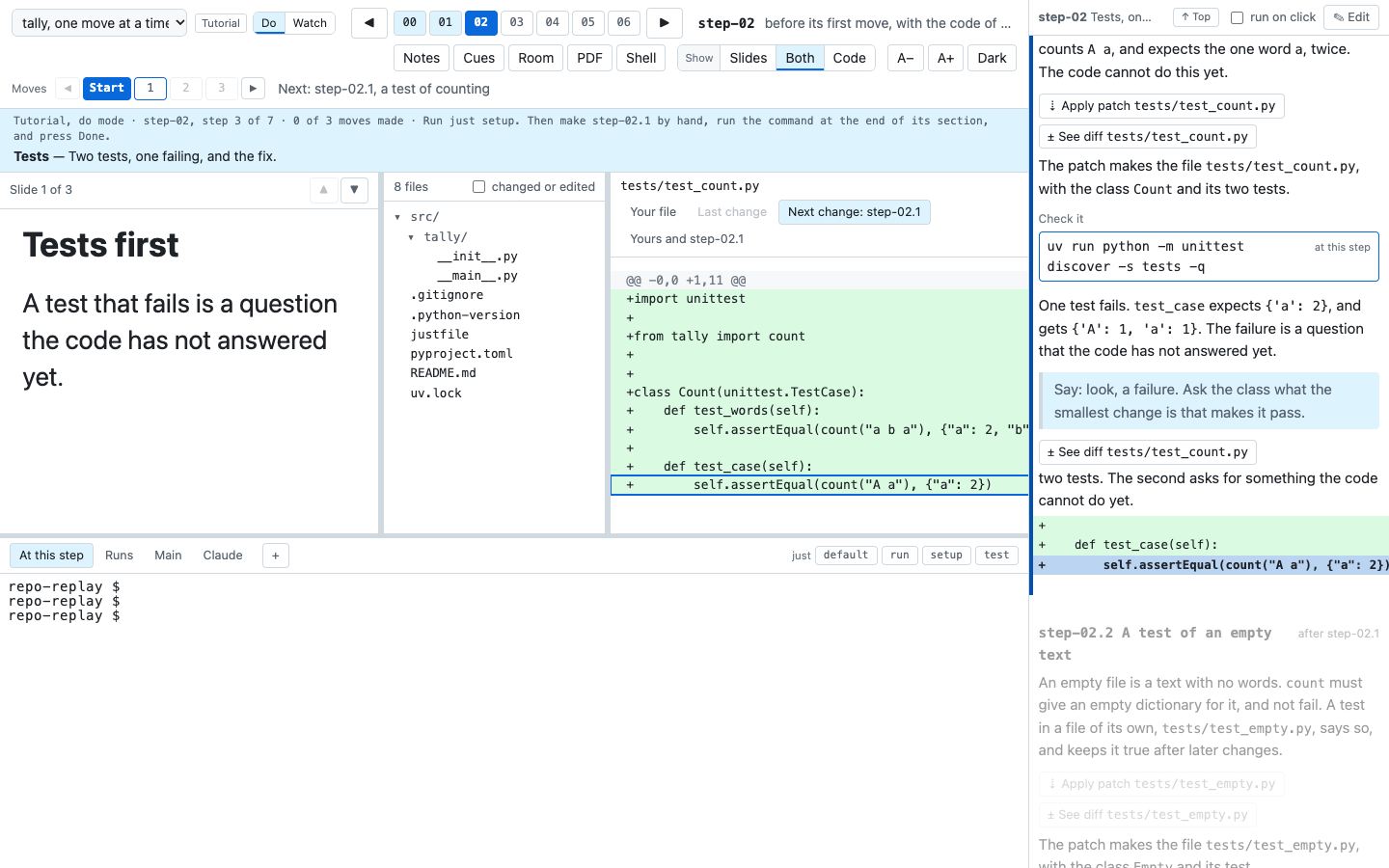
In do mode, each move section has these buttons:
| Button | Does |
|---|---|
| Done ✓ | On the move that the learner works on: marks it done, and goes on to the next move. The code does not move |
| ⇥ Catch me up | On the move that the learner works on: checks out the commit at the end of that move, in every window. If the replay copy has edits, the move keeps the work of the learner on a saved branch first. It never discards them |
| Made ✓ | On a move already made, in place of Done ✓. It is grey, and does nothing |
The moves go in order, in both modes. A step starts with just setup, so any step is a safe place to
start. A move has no setup of its own, so it builds on what the moves before it did to the environment. A
skip would miss that. So the moves after the next one are grey, and their buttons, commands and items do
nothing. The way back is the step’s Start, or ↺ Restart step in the notes, and then just setup.
An item under files: opens the change of its move in the reader, even before the file exists. In do
mode, the reader then shows the change in the tab Next change. A patch$ line of the move gives a
button that applies the patch. See The reader in a tutorial and
patch$ buttons.
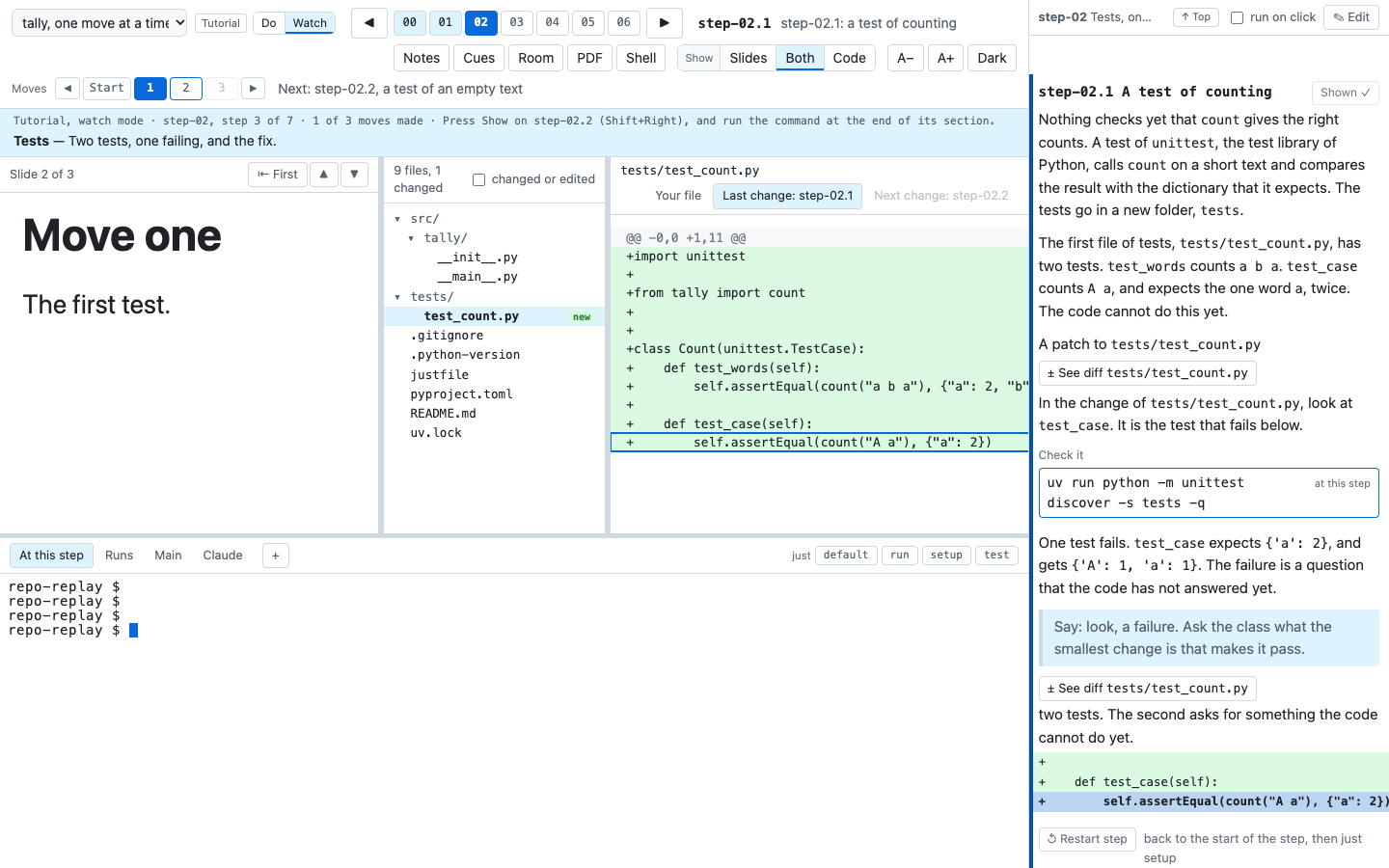
In watch mode, the next move has a Show ▶ button. It checks out the commit of that move, in every window. If the replay copy has edits, the move keeps them on a saved branch first. A move already shown has a grey Shown ✓ button in its place, which does nothing.
Blocks for one mode
The two modes need some different words. In do mode, the notes must give every line to type. In watch mode, the code is already there. The notes say what the change does and where to see it, and the lines to type get in the way. But the problem, the explanation, the check and the items are the same in both modes.
So the notes of a tutorial can hold a block for one mode, for only the words that differ. A block is a
fenced div, as Pandoc, Quarto and smalldocs read it. A line ::: do or ::: watch opens it, and a line
::: closes it.
### step-02.1 A test of counting

`count` must give the number of each word, and count "A" and "a" as one word. Two tests say so. The
second asks for something that the code cannot do yet.

::: do
Make the file `tests/test_count.py`, with these lines:

```python
import unittest

from tally import count


class Count(unittest.TestCase):
    def test_words(self):
        self.assertEqual(count("a b a"), {"a": 2, "b": 1})

    def test_case(self):
        self.assertEqual(count("A a"), {"a": 2})
```
:::

::: watch
The new file `tests/test_count.py` holds two tests. `test_case` expects `count("A a")` to give
`{"a": 2}`.
:::

$ uv run python -m unittest discover -s tests -q

files:
- diff `tests/test_count.py`: two tests. The second fails.
::: {.do} also opens a block, and so does a fence of more colons, for example ::::: watch. The page
shows the notes in this way:
- The text outside a block shows in both modes.
- A
doblock shows only in do mode, and awatchblock only in watch mode. - A
do$line shows in both modes. In do mode, it is a command to run. In watch mode, it shows as “The move ran:” and the command, with no button. In a strict walk, do mode replaces somedo$lines ofuvwith a command that takes their files. See A strict walk. - The switch Do / Watch changes the blocks on show, in every window. The step and the move stay.
- A narrative has no mode. It shows the
watchblocks, andtimewalk-checkwarns of adoblock.
A move section can hold several blocks, with shared text between them. For what goes in a block, what goes in the shared text, and how large to make a block, see Write for both modes.
A block has these rules:
- Close each block with a line
:::. - Put no
##or###heading in a block, and no other block. A heading closes a block that is still open, andtimewalk-checkreports an error. - A fenced code block in a block can hold a line
:::. The line is code, and closes nothing. - A
files:line, its items and the$commands in a block count only in the mode of the block. The checks read each mode as its reader sees it. See The checks. The items of onefiles:line can go on into a block. Each item in the block is then for its mode only. - Cues work in a block. The copies of
timewalk-exportleave out a private cue in a block too. - Put a
do$line outside the blocks. In a block, it shows in one mode only.timewalk-checkwarns of it, for examplewalk tut: notes.md: step-06.1: the do$ line 'uv add --dev ruff' is in the block ::: do. It also warns of ado$line before the first move of a step, and of one after the commands that check its move. Ado$line makes a move, so it goes in that move’s section, before the checks.
A fenced div of another name, for example ::: callout-note, is not a block for one mode. Both modes show
it as it is written, and timewalk-check warns of it. Such a div can go inside a block. Its closing :::
then closes the div, and the block goes on.
The PDF with --with-notes has no mode. It prints both blocks, each under a line “In do mode:” or “In
watch mode:”. timewalk-export writes one copy for each mode, with only the blocks of that mode. See
Copies of a tutorial for GitHub and a website.
Moves on the page
When a step has moves, a row of moves shows under the step bar, in every window. It has the arrows ◀ and ▶, and a button for each place. The buttons are Start, then 1, 2 and so on. Start is the place before the first move. Beside the buttons, the row shows the move on show and its subject.
| Control | In do mode | In watch mode |
|---|---|---|
| ▶, or Shift+Right | Marks the move done, and goes to the next | Checks out the commit of the next move |
| ◀, or Shift+Left, or Start | Checks out the tag before the step, and marks no move done. Edits go on a saved branch first | Checks out the tag before the step |
| The number of the next move | The same as ▶ | The same as ▶ |
| Other numbers | Do nothing: the moves go in order | Do nothing: the moves go in order |
After Start, run just setup, as the first line of the notes says.
- In a terminal, use Alt with Shift+Right and Shift+Left.
- Right and Left go to the next or the previous step, as in a narrative.
- The status band gives the mode, the step and the count of moves made. It then says what to do now, for example “press Show on step-02.1”. The first line of the notes says the same thing.
- The notes scroll to the section of the move on show, in every window. At Start, they go to the
top, where
just setupis. - Last change and Next change in the reader follow the moves. See The reader in a tutorial.
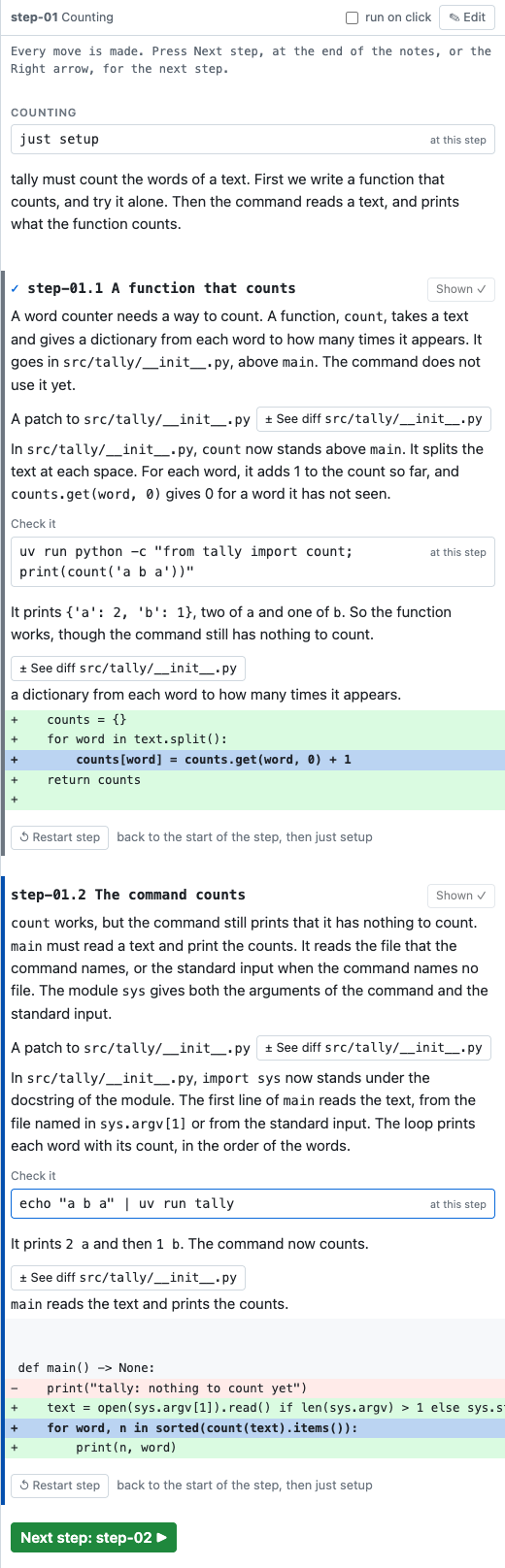
In the notes, the sections of the moves have no boxes. Each section runs from edge to edge of the column, with a bar on its left:
| Section | Looks |
|---|---|
| The text before the first move | A section of its own, under the title of the step and with no bar. The text is about the whole step |
| A move made | A grey bar, and a check before its name |
| The move on show | A dark bar |
| The next move | A blue bar |
| A move after the next | Faded, with no bar |
Once a move is made, each section of a move made ends with ↺ Restart step, and so does the section of
the move on show. The button goes back to the step’s Start, in every window, as Start does. The
code goes back to the step before. If the replay copy has edits, the move keeps them on a saved branch
first. Then run just setup again.
When every move of the step is made, a green Next step button ends the notes, with the name of the next step. The same button shows in the head of the slides, at the last slide. The Room window does not show the button on the slides.
timewalk writes down the move on show in the git folder of the replay copy. After a restart, the page comes back at the same move, and the moves before it count as done. What timewalk does with git says what each mode checks out, and when.
The items under files
A line files: in a move section starts a list of items. An item is one file to look at, with words
that say why. You write the words by hand, but the change that an item opens comes from the commits,
each time the page draws it. So the notes hold no copy of a diff.
files:
- diff `src/tally/__init__.py`: one word, `lower()`, answers the failing test.
  show: `for word in text.lower().split():`
- file `tests/test_count.py`: read `test_case` again. It passes now.| Line | Does |
|---|---|
- diff `path`: words |
A button ± See diff path that opens the change of the move to that file, and its words |
- file `path`: words |
A button ▤ See file path that opens the file itself, and its words |
- diff step-02.1 `path`: words |
The same for another move, named before the path |
show: `a line` |
Under an item: a line of the change, quoted. The notes draw it as an excerpt, and the reader marks it |
show: ``a `b` c`` |
The same, for a line with a backtick in it. See Quote a line with backticks |
| An indented line under an item | More of the words of the item |
On the page, each item is one button with an icon, a verb and the path. The button is ± See diff for
a diff item, and ▤ See file for a file item. The words of the item go on the line under the button. A
± See diff button opens the tab of the reader that holds the change:
- Next change for the move that the learner works on.
- Last change for the last move made.
- Changes in step-02.1 for any other move.
A ▤ See file button opens Your file. In do mode, the button of a move that is not made yet opens At step-02.3 instead. The view shows the file as the move leaves it, read only.
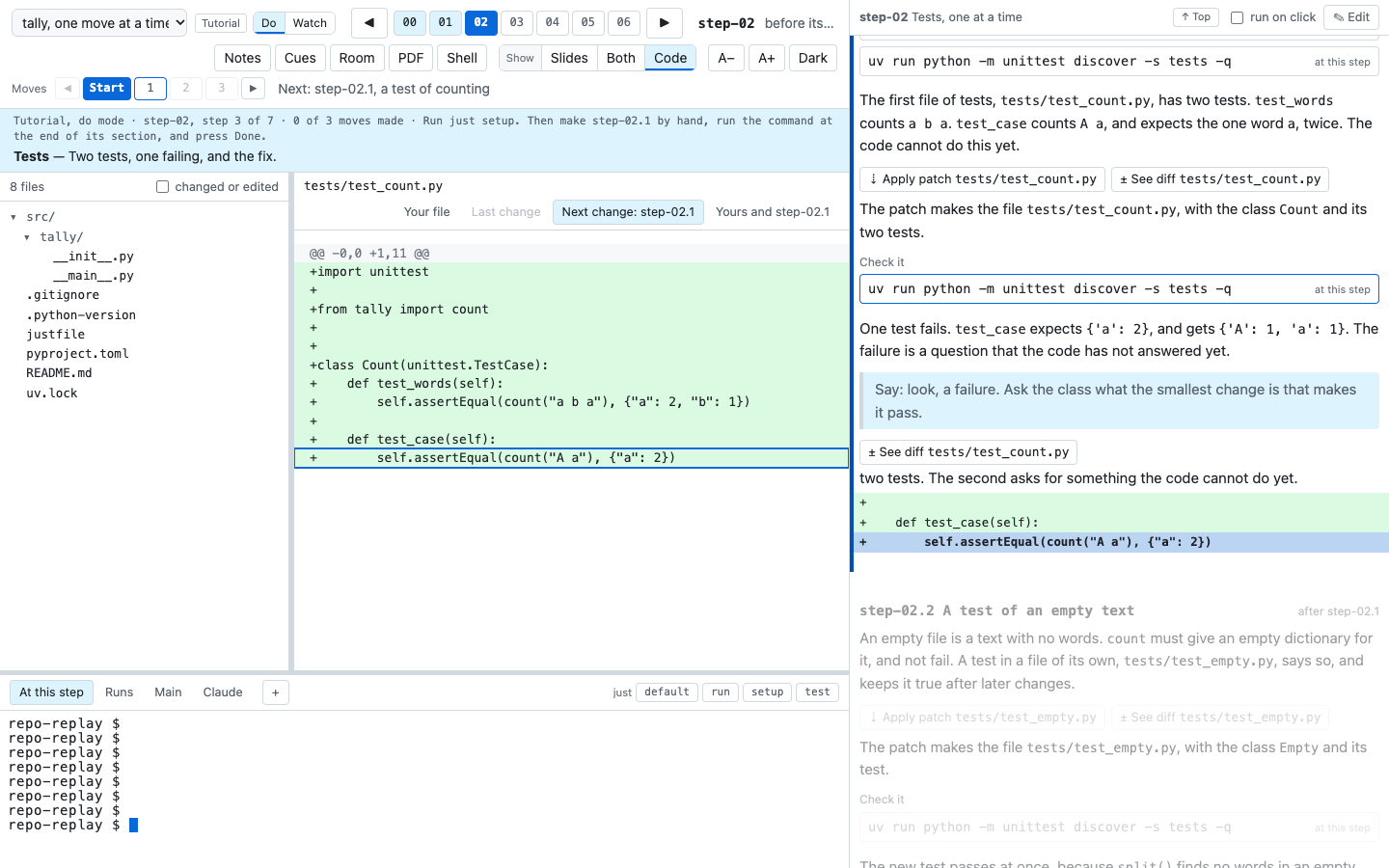
A show: line names one line of the change by its text. Under a diff item, the notes draw an excerpt
of the real diff there. An excerpt is a small part of the diff, read only. It holds the line and two
lines of context on each side, or the whole hunk when the hunk is about eight lines or fewer. A hunk is
one run of changed lines in a diff. When the item opens the reader, the reader marks the same line.
The excerpt is a band across the whole column, and the page shades the named line. A click on the excerpt opens the change, as the button of its item does. In a move after the next one, the click does nothing.
If a show: line is no longer in the change, the notes draw a red band that says so. A click on the band
opens the change too. A fix to the history can remove a quoted line. timewalk-check warns of it too.
Quote a line with backticks
A backtick is the character `. The quoted line of a show: line is a code span, as in CommonMark. A
code span is code in a line of text, between backticks. Write a line in one backtick. If the line has a
backtick in it, write it in two backticks:
  show: `x = 1`
  show: ``The command `wikiapp` uses this library.``
  show: `` `x` ``
The second line quotes The command `wikiapp` uses this library., with no backticks around it. timewalk
drops one space inside each end, as CommonMark does. So the third line quotes `x`. Write a line that
starts or ends with a backtick in this way, with a space inside each end.
A line with a backtick in it, in one backtick, shows wrong on GitHub and in the copies. They end the quote
at the first backtick in it. The page still finds the line, if the line does not end with a backtick. If
the line ends with a backtick, timewalk does not read it as a show: line. In both cases, timewalk-check
warns of it, with the line number, and says how to write it. The page draws the excerpt from the real
line of the change, so the page shows a show: line that it reads right.
A line files: with no items under it shows a ± See diff button for each file that the commit of
the move added or changed. Items also work in a narrative. There, a diff item opens Last change, the change of the
step. The PDF prints each item line as it is written.
The reader in a tutorial
In a tutorial, the reader has up to five views. Two views read the disk, and two compare commits. The label of each change names its move.
| View | Shows |
|---|---|
| Your file | The file in the replay copy, as the learner left it |
| At step-02.3 | The file as a move leaves it, read only. It shows only when a file item of a move that the learner has not made opens it, in do mode |
| Last change: step-02.2 | The move before, to this one: the change of the move just made |
| Next change: step-02.3 | This move, to the next one: the change of the move to make now. It is empty at the last move of a step |
| Yours and step-02.3 | In do mode: your file against the file as the move to make now leaves it. Lines with - are yours, and lines with + are the move’s |
| Your edits | The edits since the commit that the replay copy stands on |
In do mode, the code does not move, so Last change and Next change follow the moves marked done. In watch mode, they follow the move on show. At Start, no move is made, so Last change is empty and Next change is the first move.
In a narrative, Last change compares the step before with this step. Next change compares this step with the next step, before you move to it.
Next change is what the commit of the move changed. Yours and step-02.3 is what is left to do. It compares your file with the file as the move leaves it, as the match does. So the learner sees both what they did and what the move expects.
Before any edit, the two tabs show the same change. When
your file matches the move, the tab is empty. A file of the walk’s loose that matches by the names of its
packages says so above its diff, as the versions can differ.
patch$ buttons
A line patch$ PATH in the notes says that the move changes PATH by a patch. See
patch$ lines. In do mode, on the move that the learner works on, the line shows
a button that fits the learner’s file. The button types a git command into the At this step tab, and
runs it. The learner sees exactly what ran.
| Button | Shows when | Types into the shell |
|---|---|---|
| ⇣ Apply patch PATH | The file is as it was before the move | (cd COPY && git --literal-pathspecs diff --no-color --no-ext-diff --no-textconv --binary --src-prefix=a/ --dst-prefix=b/ A B -- PATH | git apply --intent-to-add) |
| ⇄ Replace with the move’s file PATH | The learner has changed the file | (cd COPY && git --literal-pathspecs checkout B -- PATH && git --literal-pathspecs reset -q -- PATH && git --literal-pathspecs add -N -- PATH) |
Here COPY is the replay copy’s own path, A is the commit before the move, and B is the commit of the move. The
command names the copy by its path, so a shell that went elsewhere changes nothing there. The options of git diff
give the form that git apply reads, whatever your git config says. A path is a name, not a pattern.
- Apply patch is a plain
git apply. It merges nothing and stages nothing. So a file never gets conflict markers. The change becomes an edit, and HEAD stays where it is. A new file is tracked with nothing staged, so ↺ Restart step keeps it on a saved branch, as any edit. - Replace keeps the learner’s version first. The server puts it on a branch
timewalk/saved/<move>-yours, a commit on top of HEAD. It writes no file. For a file that the move deletes, Replace typesrm -f -- PATH. What the learner staged withgit addis kept too, in a commit of its own. A copy with--in-place, or a replay worktree of an older version, shares its branches with your repository. It cannot keep a branch, so Replace is off there. - A renamed file needs a
patch$line for each of its two paths. Then the old file goes too.timewalk-checkwarns of a rename with one. - The button is off when the file is already as the move leaves it.
- The buttons follow the learner’s file. They change after each edit, and on each check of the match.
- ± See diff PATH opens the reader on the move’s change of that file.
- The page itself never writes a file. The shell runs the command, as any terminal does.
- The Room window shows no Apply patch or Replace button, only ± See diff PATH.
The learner can also make the change by hand. The tab Yours and step-NN.k shows what still differs. Either way, the move is marked done when the files match. In watch mode, the line is one button that opens the diff. A new file reads ± See the new file PATH, and a changed one ± See the change to PATH.
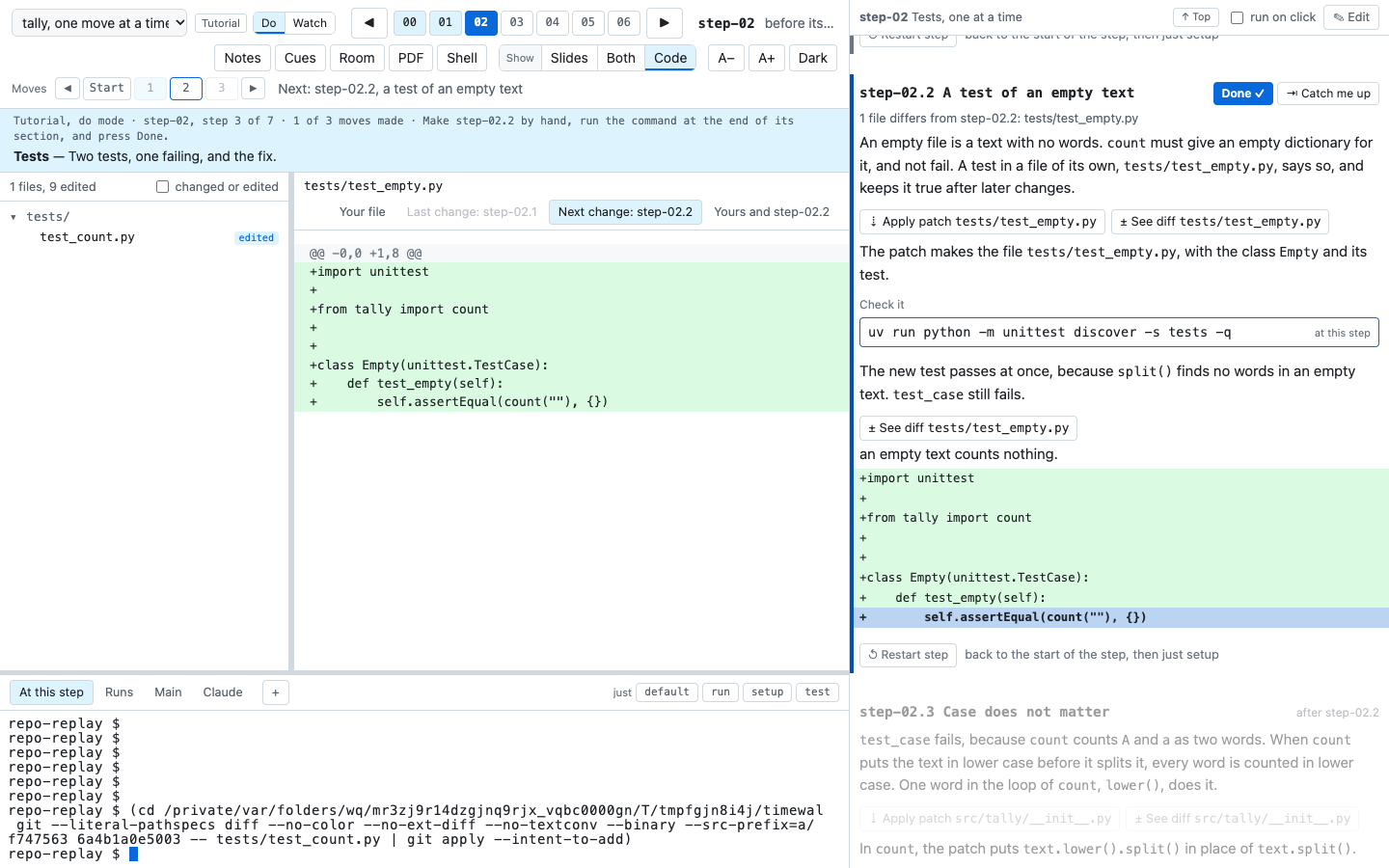
Your files match
In do mode, the page asks timewalk every two seconds if the learner’s files match the commit of the move that the learner works on. The answer shows on the section of that move:
- “Your files match step-02.3 ✓” when every file is the same as in the commit.
- “2 files differ from step-02.3: a.py, b.py” with the names of the files that differ.
A match marks the move done by itself, once for each move. Only your own window marks the move, and never the Room window.
The comparison is by content, and by whether each file can run. So a move of do$ chmod +x x alone is
made only by chmod.
The comparison takes every file that differs between HEAD and the commit of the move, and every file with edits. A new file of the move counts, even when git does not track it yet. The comparison is strict, so one extra space is a difference. It is a hint and never a gate. Done ✓ still marks a move done when the learner made it another way.
Files that match by the names of their packages
A move made with uv add, for example uv add --group test pytest, writes the newest version of the
package into pyproject.toml and uv.lock. A learner who makes the move on a later day can get a newer
version. The strict comparison then never matches. The key loose of the walk names the files to compare
by the names of their packages:
[[walk]]
id = "tutorial"
kind = "tutorial"
loose = ["pyproject.toml", "uv.lock"]
Each entry is a path in the project, or a glob, for example "*.toml". In a glob, * also matches a /.
timewalk compares a file that loose names in this way:
- A
pyproject.tomlmatches if it says the same, with the versions taken out of each requirement. The name of the package, its extras, its address (@ git+https://...) and its marker (; sys_platform != 'win32') still count. A requirement is a line such as"pytest>=8.3"inproject.dependencies,project.optional-dependencies,dependency-groups,build-system.requiresortool.uv.dev-dependencies. The order of the requirements does not count. The names are compared as PyPI compares them, soFoo_Barisfoo-bar. Every other setting, for examplerequires-python, must be the same. - A
uv.lockmatches if the packages of the project ask for the same packages by name. Its workspace must have the same members, andrequires-pythonmust be the same. The packages of the project are the ones whose source is the project itself,editableorvirtual. The versions, and the packages that those packages need in turn, are not compared. Auv.lockdoes not say in which group each package is, so namepyproject.tomlinloosetoo, as the example does. - Any other file that
loosenames is not compared by its contents. But if the move makes the file, the learner must make it too. If the move deletes it, the learner must delete it.
A pyproject.toml or a uv.lock that the move makes must be there too, as any file must.
A file that matches only by the names of its packages is still a match, and the move is marked done. The page names such files after the tick, for example “Your files match step-02.1 ✓ (pyproject.toml, uv.lock by the names of the packages, not their versions)”. A file left out shows as “(notes.txt not compared)”. Apply patch and Replace still write the file of the commit, with its versions.
loose is for a tutorial only. timewalk-check gives an error for loose in a narrative, or for a
loose that is not a list of text. It warns of each entry that no move of the walk changes, for example
walk tut: loose names nothing/*.toml, which no move of the walk changes.
It also warns of a move whose changes are all in files that loose names, and that a loose match finds
equal. An example is a move that only changes the version of a package. Do mode would mark that move done
before the learner makes it. Take its files out of loose, or join the move with one that changes more.
A strict walk
A tutorial whose loose does not name pyproject.toml or uv.lock is strict for that file. Do mode
compares the file line by line, so the learner must have the author’s versions.
Problem. The author’s move runs do$ uv add --dev ruff, and that command wrote ruff 0.17.0. A learner
runs the same command a month later, and gets ruff 0.17.1. The learner’s uv.lock then differs from the
move’s uv.lock, and Your files match never comes.
Fix. In do mode of a strict walk, the page does not give such a uv command. It says that the author
ran the command, and gives one command in its place, for example:
git restore --source 1a2b3c4d5e6f -- pyproject.toml uv.lock && uv sync --locked --all-groups --all-packagesgit restore --source 1a2b3c4d5e6ftakes each file that theuvcommand wrote from the commit of the move, as the author has it. Auvcommand such asuv initwrites other files too, for example.python-version. The command takes them too.rm -ffollows for each file that theuvcommand deleted, if there is one.uv sync --locked --all-groups --all-packagesinstalls exactly the versions of thatuv.lock, in every group and every member of a workspace. It does not changeuv.lock. It comes once for eachuv.lockthat the command takes. For auv.lockin a folder, for examplesub/uv.lock, it has--directory sub.
The command is from the top of the project. A click on it types it into the At this step tab. With
run on click, it also runs. The move then matches. Watch mode, and a walk whose loose names both files,
still show the uv command.
The page does this for a do$ line when two things are true:
- The line runs
uv. Its first word isuv, or the first word after&&,||,;,|or a bracket isuv, for examplecd sub && uv add x. Settings before the word are skipped, soUV_INDEX=x uv add yrunsuvtoo. - The line writes a file of the move, a
pyproject.tomlor auv.lockthatloosedoes not name.
uv behind another command is an error. In env A=1 uv add x, time uv add x, sudo uv add x,
bash -c "uv add x" or ~/.local/bin/uv add x, the first word is not uv. The page then does not find
the uv command. It shows the line as the author wrote it, and not the git restore command. The learner
runs the line, and can get newer versions than the author’s.
So in a move that changes a pyproject.toml or a uv.lock that loose does not name, timewalk-check
gives an error for such a line. Put uv at the start of the command, for example A=1 uv add x.
timewalk-check counts each uv in the line that starts a word, or comes after /, =, (, `,
: or -, and that ends the word, or comes before `, ) or }. It also counts the commands of the line
that start with uv. If it finds more of the first than of the second, it gives the error. So echo uv and
cd uv && uv add x are errors too. For a folder uv, write cd uv/.
timewalk-check cannot see a uv that a recipe or a script runs, for example just lock or
./scripts/add.sh. In a strict walk, write the uv command itself on the do$ line.
A step with no moves, after the first step, is one commit after the step before it. Do mode treats it as one
move, and its do$ lines of uv get the same command. Each of its files comes from a do$ line or from a
patch$ line.
A uv command that runs a program stays. Six commands of uv exist to write the files of the project,
for example pyproject.toml and uv.lock, and run no program of the project. They are uv add,
uv remove, uv lock, uv init, uv version and uv sync. The page leaves out a line of these
commands, and gives the git restore command in its place. Every other command of uv runs a program or reads the project,
for example uv run, uv tool, uv format, uv tree or uv export.
- Problem. The author’s move runs
do$ uv run python make.py. The program makesdata.csv, anduvalso locks the project again and writesuv.lock. If the page left the line out, the learner would never makedata.csv. - Fix. The page gives the line as a command to run. Then it gives the command that takes the files,
after the line. A line with both kinds, for example
uv add x && uv run y, also runs, and the command comes after it. - A later line. A later
uv addthat writes the same files gets no command of its own, as the next paragraph explains. A lateruv runthat writesuv.lockagain stays, and the command comes again after it.
A later do$ line of the move that writes a file of such a line joins it. For example, do$ uv add click
writes pyproject.toml and uv.lock, and then do$ printf ... >> pyproject.toml changes pyproject.toml.
The commit has each file only as the move ends. So the page gives one command, at the first line, that takes
every file of both lines. At the later line, it says that the command above takes its files.
To know which files each do$ line writes, timewalk runs the move’s do$ lines in a scratch clone, as
timewalk-check does. See timewalk-check. It runs them in this way:
- When. A window opens. timewalk then runs them in the background, the moves of the step on show first.
- Which moves. Each move of the walk with a
do$line ofuvand a file that is compared line by line. It runs everydo$line of such a move, for example ado$ just traintoo. Until the run ends, nodo$line of the move has a button. - Until the run ends. The page says that timewalk is running the lines, and gives no command to run.
- The cache. A move that
timewalk-checkchecked before reads the result from the cache, and runs nothing. A run where a line fails is not kept. - A run that fails. For example,
uv addhas no network. The firstdo$line ofuvof the move then says that timewalk cannot find the author’s versions, and why. It gives the line as it is, and a ↻ Try again button. Try again runs the lines again, for every window. timewalk also runs them again by itself when a window loads the notes a minute or more after the failure. A window loads the notes when it moves to another step, and when you reload it. - The end. When you stop timewalk, a run in progress stops too.
With --no-run, or TIMEWALK_NO_RUN=1, timewalk runs nothing, and the page gives the uv command.
timewalk-export --json gives each such do$ line the same command, in the field take. See
The facts file. If the lines fail, timewalk-check gives an error, with the line that failed and the reason, and the facts file has it in its errors. The do copies of
timewalk-export --markdown and --site give the same command and the same words. If the lines do not run,
the copy gives the uv command, and timewalk-export says why.
Slides for moves
A move can have slides of its own in slides.toml. Quote its name, because it holds a dot:
[slides]
step-02 = ["talk.md#3"]
"step-02.1" = ["moves.md#1"]
"step-02.3" = ["moves.md#2"]
The slides of a step are its own slides, then the slides of each move, in order. With sync, the slides
follow the moves:
- A move shows its first slide. A move without slides keeps the slide before it.
- In do mode, Done ✓ shows the first slide of the next move, if that move has slides.
- In watch mode, a slide of another move also checks out that move. A slide of the next move makes that move, and a slide of an earlier move goes back to it. A slide that is further ahead makes only the next move.
Write sync = false at the top of slides.toml, before [slides], to keep the slides and the moves
apart. The key sync in toc.toml does the same for the walk, and the manifest wins.
Draft the notes of the moves
timewalk-notes writes a first draft of the section of each move that the notes do not have yet:
timewalk-notes ~/code/project --toc my-class/toc.toml --walk tutorial
timewalk-notes ~/code/project --toc my-class/toc.toml --walk tutorial --write
Without --write, it prints only the drafts. With --write, it writes them into the
notes file of the walk. It refuses a notes file inside the project or a replay copy of it. A section that is already in the notes stays as it is. Each draft has its
parts in the order that a reader needs them:
- A heading
### step-NN.k, with the subject of the commit after its name as the title. A step that has no section yet gets one too,## step-NN Title, with the first line of its tag’s message, steps without moves too. A walk whose folder has nonotes.mdyet gets one. - A comment for both modes. It asks for the problem that the change solves, and the change.
- A line
patch$ PATHfor each file of the commit. Put ado$line, the command, in place of thepatch$lines of the files that a command writes. - A block
::: do, with a comment that asks what to read in each patch, and where in the file. It asks for no code, as the patch comes from the project. - A block
::: watch, with a comment that asks what the change does, and where to see it. - A comment that asks for the check, a command and what it prints. Replace it with the anchor commands.
- Last, a line
files:, with items. It drafts an item for every file of the commit,uv.locktoo. A new file gets afileitem, and every other file adiffitem. You write the words of each item. It writes noshow:lines.
### step-03.1 ruff, a tool for development

<!-- For both modes: the problem this change solves, and the change. ... -->

patch$ pyproject.toml
patch$ uv.lock

::: do
<!-- What to read in each patch, and where in the file. Copy no code: the patch comes from the project. -->
:::

::: watch
<!-- What the change does, and where to see it. ... -->
:::

<!-- A command that checks the result, and what it prints, for example: $ just test -->

files:
- diff `pyproject.toml`:
- diff `uv.lock`:
The draft has no list of the files in prose. A page made from the facts of the walk makes that list
from the facts. See The facts file. Finish each draft by hand. Replace each
comment, write the words of each item, and quote the main line of each change with show:. Leave out a
block that has nothing to say.
--blocks is still accepted, for old scripts, and does nothing. Every draft has both blocks.
See Write for both modes.
Copies of a tutorial for GitHub and a website
timewalk-export writes copies of a tutorial walk that a reader can read without timewalk. It writes
a Markdown file for each mode, for GitHub. It also writes a website, with a page for each step in each
mode. For a narrative, it writes one Markdown file and one website. See
The copies of a small walk.
timewalk-export ~/code/project --toc my-class/toc.toml --walk tutorial --markdown out
timewalk-export ~/code/project --toc my-class/toc.toml --walk tutorial --site site
smalldocs render site
The links go to the project on GitHub. The address comes from the remote origin of the project, or from
--github. Reference lists every option.
The facts of a walk, for pages of your own
The Markdown and the website of timewalk-export stay, for whoever uses them. A class can also make
pages of its own. Then it asks timewalk-export for the facts of the walk, in place of a copy:
timewalk-export ~/code/project --toc my-class/toc.toml --walk tutorial --json facts.jsonThe facts file is one JSON file. It holds the walk, its stops, and the text of each move in parts for each mode. It also holds every file that each commit changes, with its whole diff. It has no words or layout of timewalk, so a class sets its own.
The facts leave out the private lines, as the copies do. --private keeps them, for a copy for the
presenter. See The facts file.
The walk skill of walk-kit, at github.com/rahuldave/walk-kit, makes the pages of a class from the facts
file. It calls the two ways of reading Read the tutorial, for watch mode, and Build it yourself,
for do mode. On its pages, a patch$ line in Read the tutorial is a button to the file’s diff. It reads “± See the
new file PATH”, or “± See the change to PATH”. In Build it
yourself, it reads “Apply the patch to PATH:”, with a command that applies the patch from GitHub.
What a copy holds
Each copy is for one mode. It changes the notes in these ways:
- It keeps the text outside the blocks, and the blocks of its mode. It leaves out the blocks of the other mode.
- It leaves out the private lines, by the rule of the
walkskill. A private line is atime:line, or a cue in an HTML comment. A cue> Say:or> Note:is private too, with the whole blockquote that holds it. Fenced code is read as CommonMark reads it, and stays as it is written, blank lines included. A blockquote with a cue and a public cue, such as> Try:, stops the command, with the file and the line. Put a blank line between them.timewalk-checkfinds it first, as an error. A command line, for example$ just testordo$ uv lock, ends a blockquote. - Each run of commands becomes a
bashcode block. A command for a Runs tab gets a comment line,# in a second terminal. - A
do$line follows the mode of the copy. The do copy puts it in abashcode block, as a$line. The watch copy, and the copy of a narrative, show the line “The move ran:” with the command in code. - Each step links to its code at its tag, and each move to its commit on GitHub. In a tutorial, a step with moves first links to the code at its Start. The page puts the step there.
- Each item under
files:links to its file at the commit. Adiffitem also links to its change in the commit. Adiffitem of a step, before its first move, links to the whole change of the step. Ashow:line becomes a sub-item, “look at:”, with the quoted line. The quoted line is code, in more backticks than any run of backticks in it, so GitHub and the site show it right. - After each
files:list, the change of eachdiffitem follows as adiffcode block, under a line “The change ofpath:”. Afileitem shows no change. The blocks come before the commands after the list, and the links to GitHub stay.- The change of a move goes from the commit before the move to the commit of the move.
- A block shows at most 200 lines of the change. The link to GitHub has the rest. A binary file, or a change of its mode alone, shows no block.
- The change of an item of a step goes from the Start of the step. For the first commit, every line of the file is added.
- GitHub and smalldocs 0.1.4 or later colour a
diffblock, with the removed lines in red and the added lines in green. Quarto colours it only with its common colours for code.
- A
patch$line follows the mode of the copy. The do copy says “Apply the patch toPATH:”, with the path linked to its diff on GitHub. Abashcode block follows, withcurl -sL https://github.com/OWNER/NAME/commit/SHA.diff | git apply --include=PATH. The watch copy says “See the new filePATH.” or “See the change toPATH.”, with the same link. Any other sentence goes as written. - A copy holds only the sections of the steps and moves of the walk. If the notes have a section for a name that is not a step of the history, the command says so.
The text of the notes before the first step goes first, under the title. --no-opening leaves it out.
--intro puts a Markdown file of your own before it. The key intro of the walk in toc.toml takes the
place of the text of the notes before the first step. So does the intro of a walk with notes of its own.
The Markdown files
--markdown DIR writes TUTORIAL-do.md and TUTORIAL-watch.md in the folder. Each file starts with a
sentence that says what its mode asks of the reader, and a link to the other file. Each step is a ##
section, and each move a ### section. GitHub shows both files with their links.
The website
--site DIR writes one website with two sections, Watch and Do. One site has one address and one
build. Each page links to the same step in the other mode, as the switch Do / Watch does in timewalk.
| File | Holds |
|---|---|
index.qmd |
The front page: the title, the opening, and a list of the steps of each mode |
watch/step-NN.qmd, do/step-NN.qmd |
One page for each step in each mode. Each move is a section of the page of its step |
_smalldocs.yml |
The settings of the site, with a sidebar. Each move’s heading has the move as its id, for example {#step-02.1}, and the sidebar links to it |
styles.css |
A short style for code in a sentence |
smalldocs builds the folder with smalldocs render DIR. With --quarto, the command writes _quarto.yml
in place of _smalldocs.yml, and quarto render DIR builds it. The settings list the pages to build, and
only the pages that timewalk-export writes. A notes file in the folder never becomes a page.
What timewalk-export writes over
- Every file that it writes starts with a line “Made by timewalk-export”.
- It writes over only a file with that line. If the folder has a file of the same name without it, the command stops. It checks every file before it writes the first, so it then writes nothing.
- It also writes over a file with the line “Made by timewalk-tutorial”.
timewalk-tutorialwas the old name of the command, so it writes over the old copies and does not refuse them. - It removes its own old step pages, for example the page of a step that the walk no longer has.
- It refuses a folder inside the project, its replay copy or a worktree of it, also through a link.
The walk skill refreshes the public walk repository of a class. Its own scan for private lines stays
the check of what reaches students.
Take a small walk out of a big one
A big tutorial can hold several smaller walks. A small walk names the steps and the moves that it takes
with the key select. It reads the notes and the slides of the big tutorial, so you write each section
once.
For example, the tutorial of smallwikiapp has eleven steps and many moves. Three small walks take parts of it:
| Walk | Kind | select |
|---|---|---|
| testing | Tutorial | ["step-02", "step-03", "step-05.5", "step-06", "step-08.4"] |
| linting | Tutorial, in watch mode | ["step-04.1..step-04.7", "step-04.9..step-04.10", "step-05.3..step-05.6", "step-10.3"] |
| docs | Narrative | ["step-08", "step-09.4", "step-09.5"] |
The walk linting in toc.toml:
[[walk]]
id = "linting"
title = "Lint the code, one move at a time"
description = "The moves of smallwikiapp that add ruff, its rules, and the checks that run it."
kind = "tutorial"
moves = "watch"
notes = "walks/tutorial/notes.md"              # the notes of the whole tutorial
slides = "walks/tutorial/slides/slides.toml"   # its slides
intro = "walks/linting/intro.md"               # what the walk says at its first stop, and its copies before the first step
select = ["step-04.1..step-04.7", "step-04.9..step-04.10", { range = "step-05.3..step-05.6", title = "Types" }, "step-10.3"]
The class timewalk-test has two small walks with select, small and story. Open them with just present small
and just present story.
What select names
| Entry | Example | The walk takes |
|---|---|---|
| A step | "step-04" |
The whole step. In a tutorial, the step keeps all its moves |
| A move | "step-10.3" |
One move, as a small step of its own |
| A range of moves | "step-05.3..step-05.6" |
The moves from the first to the last, as one small step. Both moves are in one step |
| An entry with a title | { range = "step-05.3..step-05.6", title = "Types" } |
What range names, a step, a move or a range of moves, with a title. See A title for a stop |
A small step is a step of a walk that holds only some of the moves of a step of the history. Name the entries in the order of the history. These rules apply:
- A narrative takes steps and single moves. Each one is a stop, with no moves. A narrative cannot take a range of moves.
- The whole step of a narrative is its tag. The tag comes after the moves of the step, so a move goes
before its step. Write
["step-01.2", "step-01"], not["step-01", "step-01.2"]. - The last move of a step is the commit of its tag. In smallwikiapp,
step-04.10is the commit of the tagstep-04.
Each of these is an error, and timewalk does not start:
- An entry out of the order of the history.
- An entry that takes a part that an entry before it took.
- A name that is not a step or a move of the history.
- A range from a move of one step to a move of another step, or a range that goes back.
- A range in a narrative.
- A walk with both
stepsandselect.
The Start of a small step
The Start of a step is the place before its first move, where the step starts. A step of a walk that selects starts at the commit before it:
- A whole step starts at the tag before it, as in the big tutorial.
- A small step starts at the commit before its first move. The small step
step-05.3 to step-05.6starts at the commit ofstep-05.2. A small step from the first move of a step starts at the tag before the step. - A stop of a narrative at a move is the commit of the move. Its Last change is the change of that move.
At the Start of a small step, the step bar says “before step-05.3, with the code of the commit before it”. Last change at the end of a small step compares its Start with its last move. So the change of a small step holds only the change of its moves.
A walk that selects starts at its first stop. If timewalk starts on such a walk and the replay copy is at no stop of it, timewalk moves the replay copy there. The move keeps any edits on a saved branch, as every move does. timewalk prints the name of the branch when it starts, as no window is open yet to show it.
The names of small steps
The page names a small step by its moves. A range is “step-05.3 to step-05.6”, and a single move is the
name of the move, for example “step-10.3”. The moves of a small step keep their names, so a move is
step-05.4 in the notes, in the commit and in every walk. A saved branch at a small step is, for example,
timewalk/saved/step-05.3-to-step-05.6.
A title for a stop
An entry of select in braces gives its stop a title:
select = [{ range = "step-05.3..step-05.6", title = "Types" }, "step-06"]The entry in braces has the key range, which takes any entry of select, a step, a move or a range of
moves. The key title is optional, and is one line. The two forms of entry can be in one list. Any other key in the braces
is an error.
The title shows in these places:
- the heading of the notes column, and the line “Next:” in the clock band at the stop before it
- the hover text of the stop’s button in the step bar
- the title of the browser tab, for example “step-05.3 to step-05.6 Types | timewalk”
- the PDF of
timewalk-pdf - the heading of the stop in the Markdown copies of
timewalk-export,TUTORIAL-do.mdandTUTORIAL-watch.md - the title of the stop’s page, and its entry in the sidebar, in the website of
timewalk-export
A range without a title has no title in the copies and the PDF, and the title of its step on the page. A
title for a whole step, or for one move, takes the place of the title from the notes. The browser tab
shows the title of every step, from select or from the notes.
The intro of a walk
The key intro of a walk names a Markdown file about the whole walk. A small walk can use it to say which
moves it leaves out between its parts. At the first stop of the walk, the notes column shows the intro
under the line that says what to do now. Its label is “About this walk”. It shows in do mode, in watch mode, and in a narrative.
As in the notes, a ::: do block of the intro shows only in do mode. A ::: watch block shows in watch
mode and in a narrative. A line time: does not show.
The cues of the intro, for example > Say: lines, show only where the cues of the notes show. The Room
window, and a window with Cues off, hide them. The copies of timewalk-export put the intro first,
under the title.
One notes file for several walks
A small walk names the notes of the whole tutorial, for example notes = "walks/tutorial/notes.md". It
reads the sections of its steps and moves from that file. The notes column shows these parts:
| Stop | The notes column shows |
|---|---|
| A whole step of a tutorial | The whole section of the step |
| A small step | The commands at the top of the section of its step, for example $ just setup, then the sections of its moves |
| A whole step of a narrative that selects | The text of the step before its first move |
| A stop of a narrative at a move | The commands at the top of the section of its step, then the section of the move |
A small step leaves out the text of its step before the first move. That text is about the whole step.
Every Start needs $ just setup, so the commands at the top of a step’s section stay. See
Write a move to read alone.
A small step has no ✎ Edit button, and neither has a stop at a move. Its notes come from several sections. Edit them in the whole tutorial, at the step of the history.
Slides of a small walk
A small walk can name the manifest of the whole tutorial. The slides follow these rules:
- A whole step shows its own slides, then the slides of its moves, as in the big tutorial.
- A small step shows the slides of its moves. If its moves have no slides, it shows the slides of its step.
- A stop of a narrative at a move shows the slides of the move, or else the slides of its step.
The checks of a small walk
timewalk-check checks each walk on the sections that it takes. A section that the walk takes and that
the notes do not have is an error, for example:
walk linting: step-05.3 to step-05.6 takes the section ### step-05.4, and notes.md has noneThe other sections of the notes are not part of the small walk. The walk of the whole tutorial checks
them, if the table of contents lists it. A section for a name that is not a step of the history is an
error. Each small step needs a slide, of its own moves or of its step. The ### sections of a step must
be in the order of the commits.
timewalk-notes --write, for a tutorial that selects, drafts only the sections that the walk takes. It
writes them into the notes of the whole tutorial, in the order of the history. A new move section goes
before the first move section that comes after it in the commits:
timewalk-notes ~/code/project --toc my-class/toc.toml --walk linting --writeThe copies of a small walk
timewalk-export --walk ID writes the copies of any walk with notes, small walks too:
timewalk-export ~/code/project --toc my-class/toc.toml --walk linting --markdown out --site site- A tutorial gets
TUTORIAL-do.md,TUTORIAL-watch.md, and one website with Watch and Do. - A narrative gets one
TUTORIAL.md, and one website with a page for each stop.
--json FILE writes the facts of any walk too, small walks included. Each stop of the walk is a stop in
the facts, with its moves.
The title of the copy of a walk that selects is the title of the walk. Each copy starts with the
intro of the walk. Each page has the name of its stop, for example watch/step-05.3-to-step-05.6.qmd.
The pages of a narrative are at the top of the folder, for example step-09.4.qmd.
The links go to these places on GitHub:
| Link | Goes to |
|---|---|
| A whole step of a tutorial | The code at its Start, under “The code at its Start”, where the page puts the step, and then the code at its tag, after its moves. A step of one commit, and the first step, have no moves. The page stays at their tag, so they have only the code at their tag |
| A whole step of a narrative | The code at its tag |
| A small step | The code at its Start, under “The code at its Start”, the commit before its first move |
| A stop of a narrative at a move | The code at the move’s commit, where the stop stands |
| A move | The commit of the move |
A diff item of a step |
The whole change of the step, from its Start |
The PDF of a small walk
timewalk-pdf --toc toc.toml --walk ID, and the PDF button, print the stops of the walk. A whole step
has its slides and the slides of its moves. A small step has the slides of its moves. A stop with no slides
of its own, and none of its moves, has the slides of its step. With --with-notes, each stop has the notes
that the page shows for it.
Topics
A topic is a label on moves, for example topic = "lint", that would make a walk of every move with
that label. timewalk does not have topics. For now, write the list of moves in select.
A walk with notes of its own
A small walk with select shows the sections of the big tutorial as they are. It has no text of its own
between its stops. A walk with notes of its own has a notes file of its own, with its own words at each
stop. It takes the sections of its moves from the notes of the big tutorial, the shared notes. So each
section of a move is still written once.
Use notes of its own when the walk needs words that the big tutorial does not have:
- text at a stop, before its moves, between them or after them
- what the walk leaves out since the stop before, for example “this walk skips the types”
- a recap after the moves of a stop, for example what three tests now say
For a walk that needs none of these, select and intro are enough. See
What a small walk needs.
Only a tutorial can have notes of its own. In toc.toml, give the walk two notes files:
[[walk]]
id = "testing"
title = "The tests of tally, with notes of its own"
description = "A small tutorial with its own words at each stop: what it leaves out, and what the moves did."
kind = "tutorial"
notes = "walks/testing/notes.md"    # its own notes: an intro, and a ## stop for each place, with its includes
shared = "walks/tutorial/notes.md"  # the notes that its {{include ...}} lines take move sections from
slides = "walks/tutorial/slides/slides.toml"| Key | Holds |
|---|---|
notes |
The notes of the walk itself: its intro, and a ## section for each stop |
shared |
The notes of the big tutorial. The include lines of the walk take move sections from this file |
Both files must exist. A walk with shared cannot have select, steps or intro. timewalk does not
start after either mistake. The stops of its notes take the place of select, and the text before its first stop takes the
place of intro. A walk with select and no shared works as before.
The class timewalk-test has two such walks. Open them with just present testing and just present finish:
testinghas two stops of moves, each with$ just setup, and text between and after its includes.finishhas a stop with a whole step,{{include step-04}}, and a stop of one move after a gap,{{include step-05.3}}. Its own text has a block::: doand a block::: watch.
The notes of the walk itself
This walk takes only the tests of tally. It starts after step-01, where tally can count the words of a
text. It leaves out the formatting, the types and the report.

## Three tests of counting

$ just setup

tally counts words already: step-01 made the function `count` and the command. This walk starts there.

{{include step-02.1}}

The first test is the pattern for the next two. A test gives `count` a text, and compares what it gives back.

{{include step-02.2..step-02.3}}

Three tests now say what `count` does: it counts words, it gives nothing for an empty text, and it ignores case.

## A test of the most common words

$ just setup

Since the last stop, the walk leaves out step-03 and step-04. They add ruff, the corpus, the types and a
docstring, and they change no test. This stop starts with their code.

{{include step-05.1}}
The file has these parts:
- The text before the first
##is the intro of the walk. The notes column shows it at the first stop, under “About this walk”, as it shows anintrofile. The copies oftimewalk-exportput it first, without its cues. See The intro of a walk. - Each
## Titlestarts a stop. The words after##are the title of the stop. A stop has no step name in its heading. Its includes give its place. A stop of one move with an empty heading,##, shows the title of the move. - An include line puts in sections of the shared notes. It is a line of its own, for example
{{include step-02.1}}. The page shows the sections in place of the line. Each include starts after a blank line, so a cue or a paragraph just above it never takes in the included text. - The rest is the text of the walk. It can hold prose, cues, commands such as
$ just setup, and blocks::: doand::: watch.
A line in fenced code is never a heading or an include. The text of the walk cannot have a files: list,
a do$ line, or a move heading such as ### step-05.3. The moves and their files come only from the
includes. An include cannot be in a block ::: do or ::: watch, because it brings moves for both modes.
timewalk-check gives an error for each of these lines.
What an include takes
| Include | Example | Puts in |
|---|---|---|
| A step | {{include step-04}} |
The whole step: the text of its section before its moves, and the section of each move |
| A move | {{include step-05.3}} |
The section of the move, ### step-05.3 |
| A range of moves | {{include step-05.3..step-05.6}} |
The sections of the moves from the first to the last. Both moves are in one step |
An include reads a name that ends in a dot and a number as a move. So an include cannot take a whole step whose tag
ends that way, such as v1.1.0. Give such a walk select.
The includes of a stop make one place of the history. These rules apply:
- A stop is one whole step, or moves of one step that follow on. Do mode makes the moves one at a time from the Start, so a stop cannot leave out a move. For moves after a gap, start a new stop.
- A stop can have several includes, with its own text between them and after them. Text after an include comes after that move, and the page shows it with that move.
- A whole step is alone in its stop. A stop with
{{include step-04}}has no other include. - The stops follow the order of the history. A stop does not take a move that a stop before it took.
timewalk compares places by the history, and not by the names of the tags. So
step-9beforestep-10is in order.
From the includes of each stop, timewalk makes an entry of select, with the place and the title of the
stop. The walk testing above is the same as select = [{ range = "step-02.1..step-02.3", title = "Three tests of counting" }, { range = "step-05.1", title = "A test of the most common words" }]. So everything
works as for a small walk:
- The Start of a stop of moves is the commit before its first move. The Start of a whole step is the tag before it. See The Start of a small step.
- Do mode and watch mode work as in the big tutorial.
- The slides follow Slides of a small walk.
timewalk-exportwrites the copies of the walk, with its own text. See The copies of a small walk.timewalk-pdf --with-notesprints the section of each stop, its own text and its includes.
The commands at the Start of a stop
A small walk with select puts the commands at the top of a step’s section, for example $ just setup,
at the Start of each small step. A walk with notes of its own does not. Write them in the stop itself,
above its first include, as the example does.
An include of a whole step brings these commands with it, in the text of the step before its moves.
timewalk-check warns of a stop of moves that leaves out a command that the section of its step runs
first. Without its line $ just setup, the first stop of testing gives this warning:
warning: walk testing: walks/testing/notes.md:7: the stop ## Three tests of counting starts at a Start of step-02, and does not run just setup, which the section of step-02 in walks/tutorial/notes.md runs first; add $ just setup above its first includeA stop that includes a whole step, and also runs one of the first commands of that step, runs the command
twice. timewalk-check warns of it. Take the command out of the stop.
The checks of a walk with notes of its own
timewalk reads toc.toml when it starts. These mistakes stop it there:
sharedin a narrative, orsharedwithselect,stepsorintro.- A walk with
sharedand nonotes, or a file of the two that does not exist. - A notes file with no
##stop whose includes make a place. The message tells you to runtimewalk-check, which says what is wrong with each stop.
timewalk-check gives each of these mistakes as an error, one for each stop. The other stops of the walk
stay. timewalk does not start while the checks find an error.
- A line that looks like an include but is not one, for example
{{ include: step-05.3 }}. Write an include alone on its line, as{{include step-05.3}}. - An include in a block
::: door::: watch. - An include that names a step or a move that is not in the history.
- A stop whose includes are not one of the forms, or leave out a move, or go back.
- A stop whose includes take moves of two steps, or join a whole step with more.
- Stops out of the order of the history, or two stops that take one move.
- A
files:list, ado$line or a move heading in the text of the walk. - A stop that fails the checks of blocks and cues, read together with what it includes. These checks are
the same as for any notes. For example, a block
::: watchmust not open above an include and close after it.
The messages name each file by its path from the class folder, for example walks/testing/notes.md and
walks/tutorial/notes.md. Both files often have the name notes.md.
timewalk-check gives these warnings:
- A stop with no include. The walk leaves it out, as it has no place in the history.
- A stop of moves that leaves out the commands at the top of its step’s section.
- A stop that includes a whole step, and runs one of the first commands of that step itself.
See The commands at the Start of a stop.
The shared notes are checked as the notes of a small walk are. A move section that a stop includes and the shared notes do not have is an error. See The checks of a small walk.
Edit the notes of a walk with notes of its own
The page reads both files again when one of them changes, so an edit of the words shows in every window.
The page finds the text of each stop by the place that the stop walks. timewalk makes the places of the
walk only when it starts, as it reads select in toc.toml. So restart timewalk after you add or remove a
stop, or change its includes or its title. Until the restart, a place whose stop changed shows no notes. It
never shows the text of another stop.
The notes column has no ✎ Edit button for such a walk, and the server refuses Save. Each section of the page comes from two files. Edit them in your editor.
timewalk never serves either file. Both must be outside your repository and its replay copy, as every notes file must. See Where the notes file goes.
timewalk-notes --walk testing --write drafts the move sections that the walk includes and the shared notes
do not have yet. It writes them into the shared notes. See Draft the notes of the moves.
A PDF of one walk
timewalk-pdf takes the slides and the notes of one walk from the table:
timewalk-pdf --toc my-class/toc.toml --walk tests -o tests.pdfWithout --walk, it makes the PDF of the first walk. The title of the walk goes in the footer, unless you give --title. --brand and --with-notes work as for one walk. See
Slides and documents.