Teach a class
You teach from your laptop. The class watches a projector, or a shared screen in a video call. timewalk shows the class the steps, the slides, the code and the terminals, and it keeps your cues on your laptop. This page shows how to set up the two windows, and what to check before the class starts.
What you need
- A projector as a second screen. In the display settings of your laptop, set the projector to extend the desktop, and not to mirror it. With a mirror, the class sees your window, cues included.
- Chrome or Edge. They can put the window for the class on the projector by themselves. Other browsers open it as a window that you drag there.
- Your notes, with cues for you. A cue is a line that starts with
>, for example> Say: .... See Notes.
Before the class
-
Start timewalk with your notes. For babykev, run
just presentinbabykev-class. timewalk prints two addresses:timewalk: open http://127.0.0.1:8765/?t=... timewalk: for the class, without the cues: http://127.0.0.1:8765/?t=...&cues=off -
Open the first address on your laptop. This window is yours. It shows the cues and the clock.
-
Click Room in the bar. The first time, the browser asks if the page can manage windows on all your displays. Click Allow. The window for the class then opens on the projector, at the size of the projector.
-
In the window on the projector, click Full screen.
-
Go back to your window, and start the clock if you use one.
If the browser cannot place windows, it opens the window for the class on your laptop, and the page says so. Drag that window to the projector, and click Full screen in it.
What each window shows
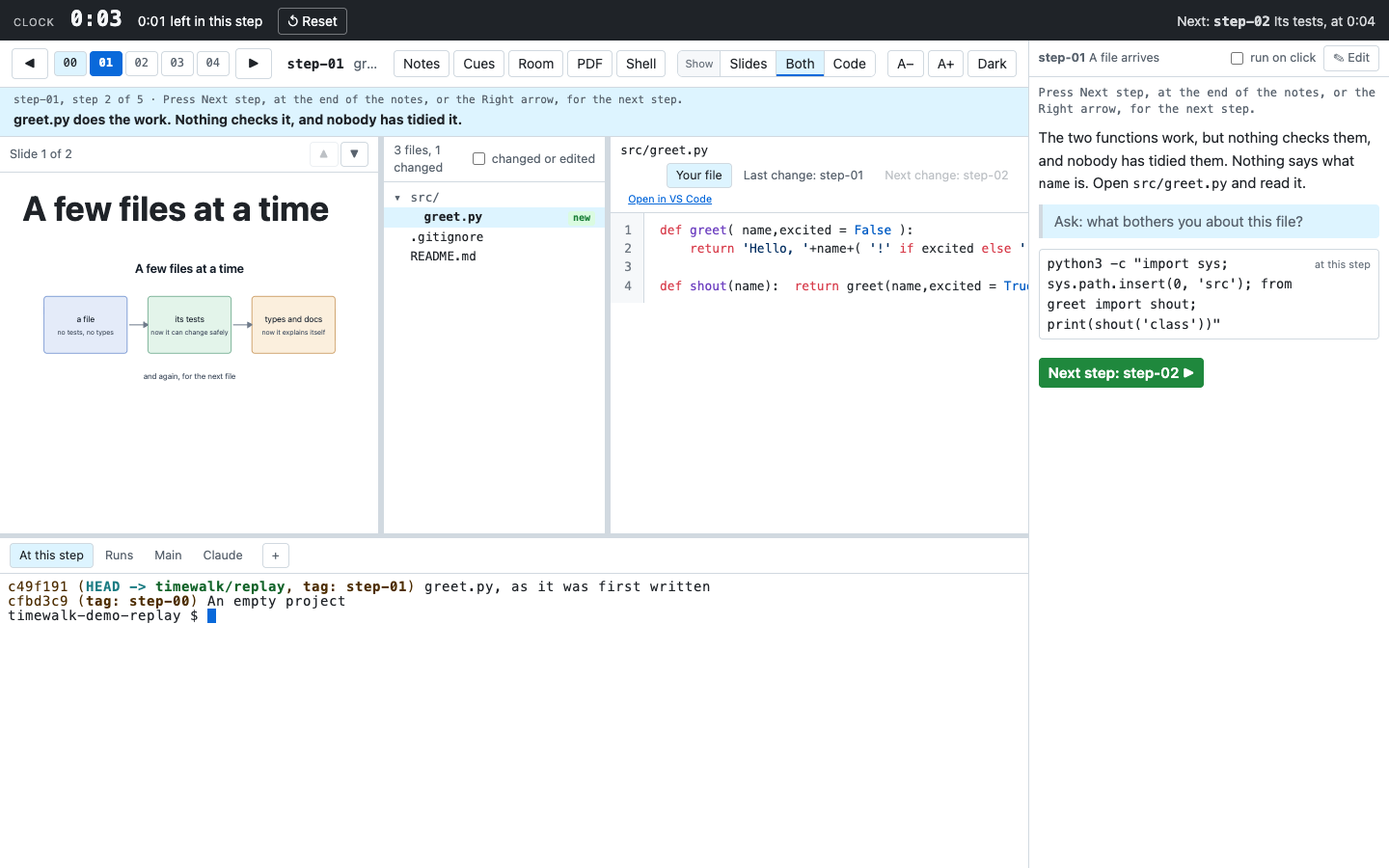
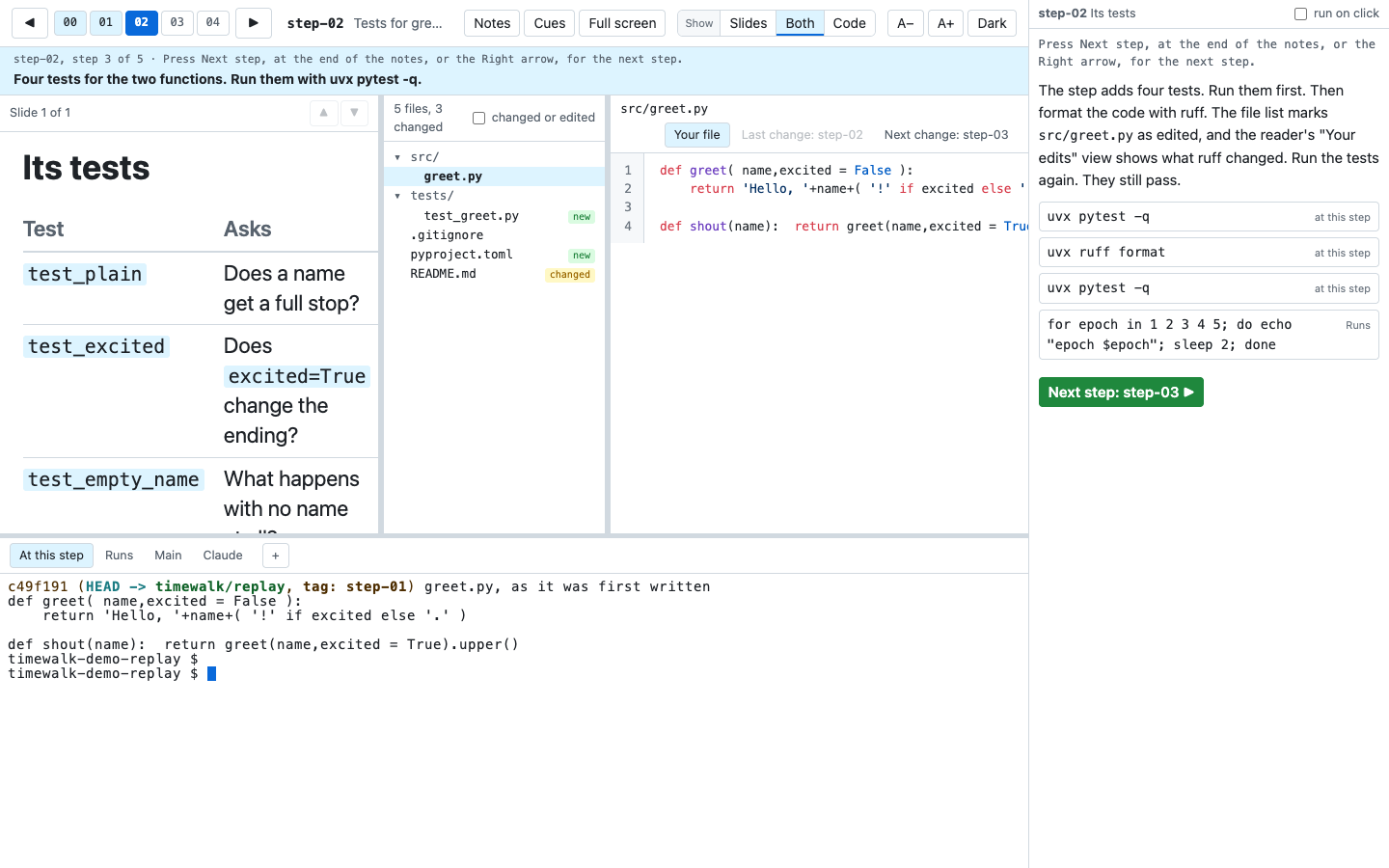
| Your window | The window for the class | |
|---|---|---|
| The step, the slide and the layout | Yes | The same, at the same time |
| The open file and its view | Yes | The same |
| Scrolling of the slide, the file and the notes | Yes | Follows yours |
| The terminals | The shells | The same shells |
| The notes and their commands | Yes | Yes |
The cues, the > lines |
Yes | No |
| The clock band | Yes, with --clock |
No |
| The status band | Yes | The same |
| PDF, ✎ Edit, Room | Yes | No |
| Next step at the last slide | Yes | No |
During the class
- Drive from your window. Press Right for the next step, and Down for the next slide. The window for the class follows.
- Click a command in the notes to type it into its terminal. Press Enter to run it, in your window. The class sees the command and its output in the same terminal.
- Scroll in your window. The class sees the same part of the slide, the file or the notes.
- Go back to the first slide of the step with ⇤ First beside the slide arrows, or with Shift+Up.
- Go back to the top of a long slide or a file with ↑ Top in its header, or with Home.
- Go back a step when you need to. Each step comes back where you left it, at the same slide and the same scroll of the slide, the notes and the open file.
- Read your cues in your window. The class does not see them.
Things to know
- The size of a shell. A shell has one size, and the window that you last typed in sets it. If you type in your window, the projector shows the output at the width of your laptop’s terminal. To fit the projector again, click once into the terminal of the window for the class. In Shell mode, the window for the class sets the size by itself.
- Shell. When the class works in the shell for a while, press Shell or Alt+Enter. The terminals fill the space of the slides and the files in both windows. See The page.
- A reload. A reload of either window keeps its choices for cues and notes. If you close the window for the class, click Room again.
- A video call. Share only the window for the class, and not your whole screen.
- The address is a key. Anyone on your machine who has the address can run commands as you. Do not show it on a slide. See Safety.
If a window stops answering
In a long class, Chrome can stop answering in a window, and say that the page is unresponsive. It happens most in the window on the projector, in full screen. The known causes are these:
- A zoomed window. Before version 1.0.14, a terminal in a zoomed window, or on a scaled screen, made a new picture of itself on every frame. That kept the window and the graphics card busy. Version 1.0.14 fixes it. To make text larger, use A+, which never had the problem.
- A projector that goes blank and comes back. In two classes, the Mac log showed the external screen connecting and disconnecting hundreds of times. Each time, the Mac waited for every open app to answer, so each blank lasted seconds. The Mac had run for seven weeks without a restart. A restart stopped it. Before a class, restart the Mac, quit the apps that you do not need, and keep a second cable or adapter.
If a window stops answering, do these steps:
- Close the message of Chrome, or press Escape to leave full screen.
- Open the address again in the same window, or reload it. If you closed the window for the class, click Room in your window.
- Click Full screen again in the window for the class.
Nothing is lost. The server keeps the step, the slide, the layout and the shells. The window comes back at the same place, with the recent output of each shell. A command that runs in a shell keeps running.
If the network drops for a moment, each window connects again by itself, and its terminals too. If you stop timewalk and start it again, it prints a new address, and the old windows say so. Open the new address. timewalk can start again at once on the same port.
A shell that prints very fast, for example a progress bar, keeps each window busy, even when its tab is not in front. If the windows become slow, stop the run, or let it print less often.
A check the evening before
- Run
just present, and open the address on your laptop. - Plug in the projector, or a second screen, set to extend.
- Click Room, and let the browser manage windows.
- Move through three steps, and check that the window for the class follows and shows no cues.
- Click one command, run it, and check the output in both windows.
- Make the PDF once with PDF, if you hand it out.