Slides and documents
A slide can be a Markdown file, a picture, a page of a PDF, or a slide of an HTML deck. A manifest is a TOML file that says which slides go with which step. A step can also show one longer Markdown document in place of slides.
The manifest
deck = "talk.md"                               # optional: the deck that bare numbers refer to

[slides]
step-00 = ["opening.md"]                       # every slide in that file
step-01 = ["tools.md#1-3", "pictures/a.svg"]   # slides 1 to 3 of a file, then a picture
step-02 = ["handout.pdf#page=2"]               # one page of a PDF
step-04 = [7, "8-10"]                          # slides of the default deck

[docs]
step-03 = "walkthrough.md"                     # one whole Markdown document instead of slides
Start timewalk with --slides slides/slides.toml. Each path is relative to the manifest.
| Entry | Means |
|---|---|
"talk.md" |
every slide in the file, in order |
"talk.md#2" |
the second slide of the file |
"talk.md#2-4" |
the second to the fourth slide of the file |
"picture.svg", .png, .jpg, .gif, .webp |
a picture as a slide |
"deck.pdf#page=3" |
a page of a PDF |
"deck.html#/3" |
a slide of an HTML deck, with the fragment that the deck uses |
7, "8-10" |
with deck = "talk.md", those slides of that deck (pages, if the deck is a PDF) |
"guide.md#doc" |
the whole file as one document, as under [docs] |
A step with no entry shows only the code.
How to write Markdown slides
A line that is exactly --- starts the next slide. The rest is usual Markdown. For example, you can
use headings, lists, tables, links, bold, code and fenced code. A fence that names a language gets
colours for its syntax. A picture is , with the path relative to the slide file. For a
horizontal rule inside a slide, write ***.
## The title of the first slide
- A point
- Another, with `code` and **bold**
---
## The second slide
Keep a slide to about six bullets or one table. On the page, a long slide scrolls. In the PDF, the slide shrinks to fit its page.
The page reloads the slides by itself. When you save the manifest or a slide file in your editor, every window draws the current slide again within about a second. The scroll position stays. You do not need to reload the page.
Pictures in the dark theme
In the dark theme, the page inverts the colours of each SVG picture. The picture can be a slide, or a picture in a Markdown slide, a document or the notes. The page then turns the hues back, so that blue stays blue, and black lines become white. A picture in another format, for example a PNG photo, keeps its colours. The PDF is always light, and keeps the colours of every picture.
Leave the background of an SVG transparent. Do not draw a white rectangle behind the picture. With no
background of its own, the picture takes the colour of the page, in both themes. The demo’s
demo/slides/shape.svg is an example.
Commands on a slide
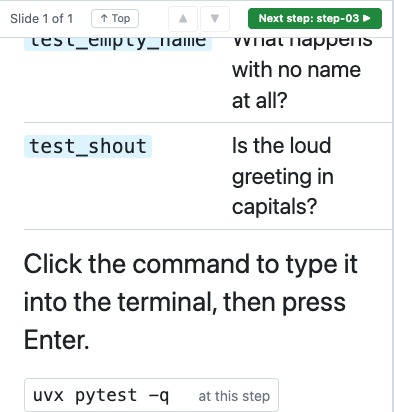
A Markdown slide, or a document, can hold commands that the reader runs from the page. Write each command on a line of its own, in the same form as in the notes:
## Its tests

Click the command to type it into the terminal, then press Enter.

$ uvx pytest -q
runs$ just train configs/cheese.yaml
main$ git log --oneline
Each command is a button at its place on the slide. A click types the command into its terminal, and
run on click in the notes column also presses Enter. The prefix chooses the tab, as in
Notes. Use $ for At this step, runs$ for Runs, and
main$ for Main.
A $ line inside a fenced code block stays code, so a slide can show a command without a button. In
the PDF, each command prints as code.
A document instead of slides
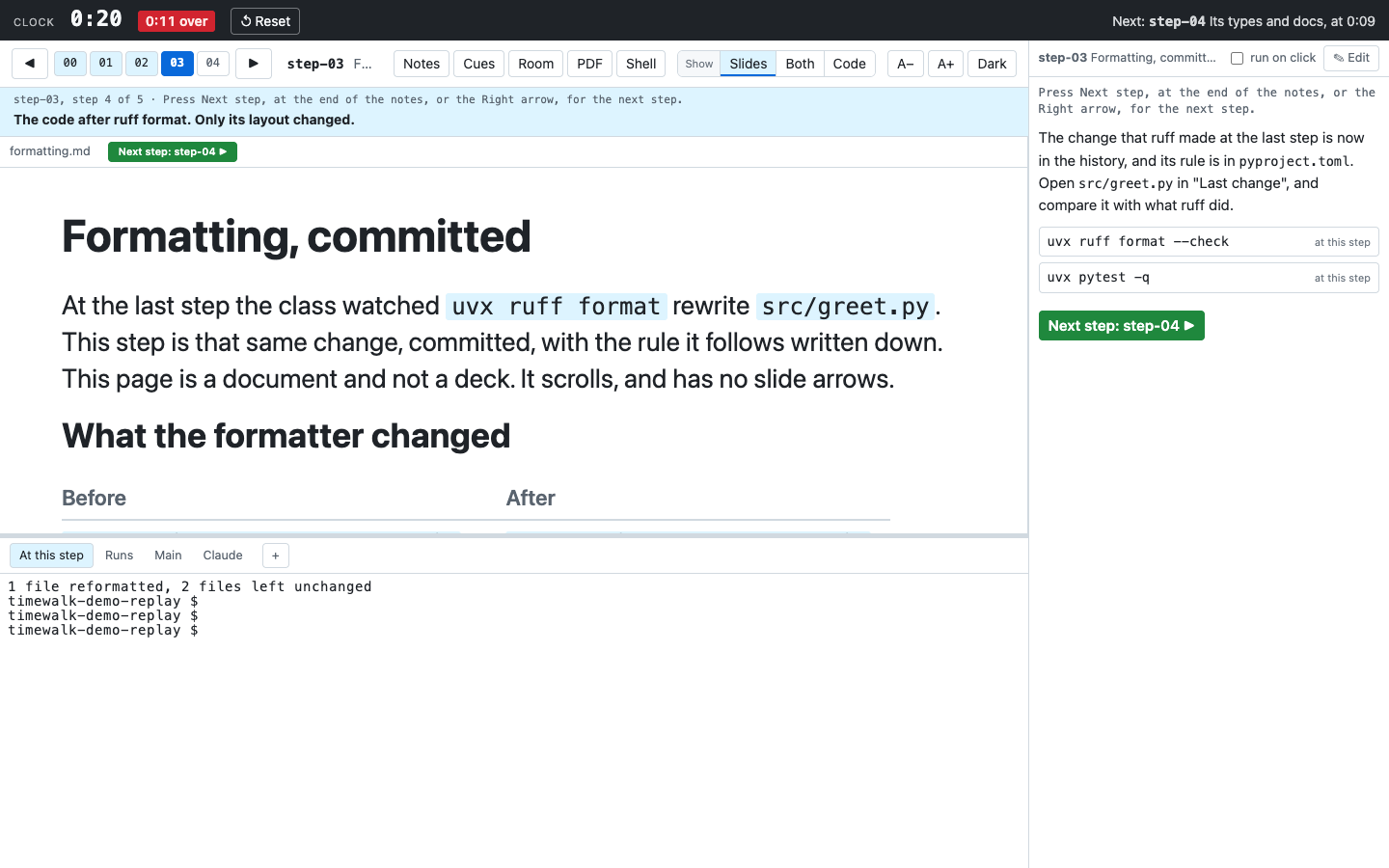
A step under [docs] shows one whole Markdown file in the slide pane:
- The document does not split at
---. There,---is a usual horizontal rule. - The document keeps the text size of the slides, and the pane keeps its size. So the document scrolls.
- The page hides the slide arrows, and the Up and Down keys scroll the document.
- The document replaces any
[slides]entry for that step.
Use a document for a walkthrough, a reading, a comparison, or other text that is too long for a slide. For
example, step-03 of the demo shows the document demo/slides/formatting.md.
A document among slides
To put a document among the slides of a step, add #doc to its entry under [slides]:
[slides]
step-05 = ["talk.md#4", "walkthrough.md#doc", "talk.md#5"]
On the document, Up and Down scroll it, even though the step has other slides. To change the slide, press Alt with Up or Down, or click a slide arrow.
A PDF of the slides
The PDF button in the step bar makes a PDF of the slides, one page each. The notes are for the page and are not in it. The browser then downloads it. timewalk draws the PDF with the browser on your machine, through Playwright, so it takes a few seconds.
To make the PDF from the command line, run timewalk-pdf:
timewalk-pdf slides/slides.toml -o handout.pdf --title "My talk" --notes notes.mdThe command writes every slide in step order, one slide per page. The footer of each page names the deck, the step and the page.
- The PDF shows Markdown slides and pictures as the browser shows them.
- A slide with too much content shrinks to fit its page.
- The pages of a PDF deck come directly from that PDF.
- A document continues over as many pages as it needs, under the name of its step.
- Without
--with-notes, the command reads--notesonly for the title of each step, for the footer. - With
--brand, the PDF takes the font, colours, cover and dividers of a brand. See Brand a PDF.
The notes in the PDF
Add --with-notes to put the notes of each step after its slides. The PDF button does not add the notes:
timewalk-pdf slides/slides.toml --notes notes.md --with-notesThe notes show the prose, the cues in their own shade, and the commands in code blocks. The PDF leaves out
the time: lines. The PDF has no mode, so it prints both blocks of a tutorial. Each block goes under a
line “In do mode:” or “In watch mode:”. See Do mode and watch mode.
The manifest is optional with --with-notes. Without a manifest, the PDF holds only the notes, as a
runbook. A runbook is a written script of each step, with its prose and commands. Without -o, the command
writes build/notes.pdf in the current folder:
timewalk-pdf --notes notes.md --with-notesWhat the command needs
The command needs Chrome or Edge, and it finds either one on your machine. If you have neither, run
uvx playwright install chromium one time. In the timewalk folder,
just pdf slides/slides.toml -o handout.pdf does the same thing as the first command.