Make the moves yourself
In do mode, you make each move by hand, and timewalk checks your files against the move’s. Choose Do with the switch beside the menu. The walk Build cheesecracker has the same notes as the first walk, and starts in do mode.
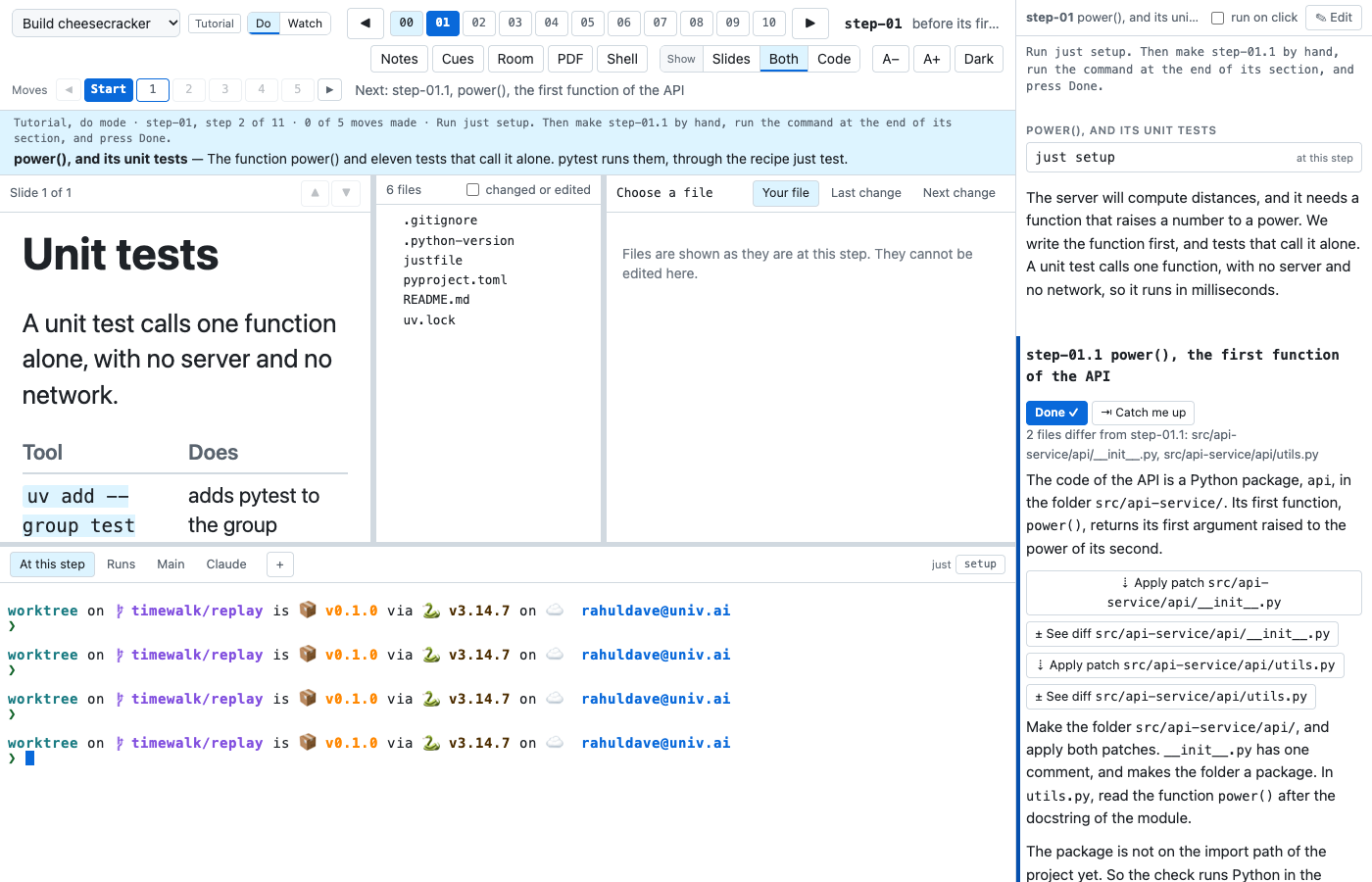
The move that you work on has these buttons. PATH stands for the path of a file of the move:
| Button | What it does |
|---|---|
| Done ✓ | Marks the move done, and goes on to the next move. timewalk leaves your files as they are |
| ⇥ Catch me up | Changes the files of the project to how they are after the move. Your own try at the move is not lost: timewalk keeps it on a git branch named timewalk/saved/... |
| ⇣ Apply patch PATH | Runs a git apply command in the terminal. The command makes the move’s change to your copy of that file. Once you have changed the file by hand, the button reads ⇄ Replace with the move’s file PATH. It keeps your version on a saved branch, and takes the move’s file |
| ± See diff PATH | Opens the change of that file in the reader |
Under the buttons, a line says how many of your files differ from the move’s, and which. Here it says “2 files differ from step-01.1”, before the work starts. When your files match, the line says so, and timewalk marks the move done for you. The line is a hint, and never stops you.
Make each change as the notes say. Apply a patch, or type the change in your editor. Then run the command under Check it. If the move is not marked done yet, press Done ✓.
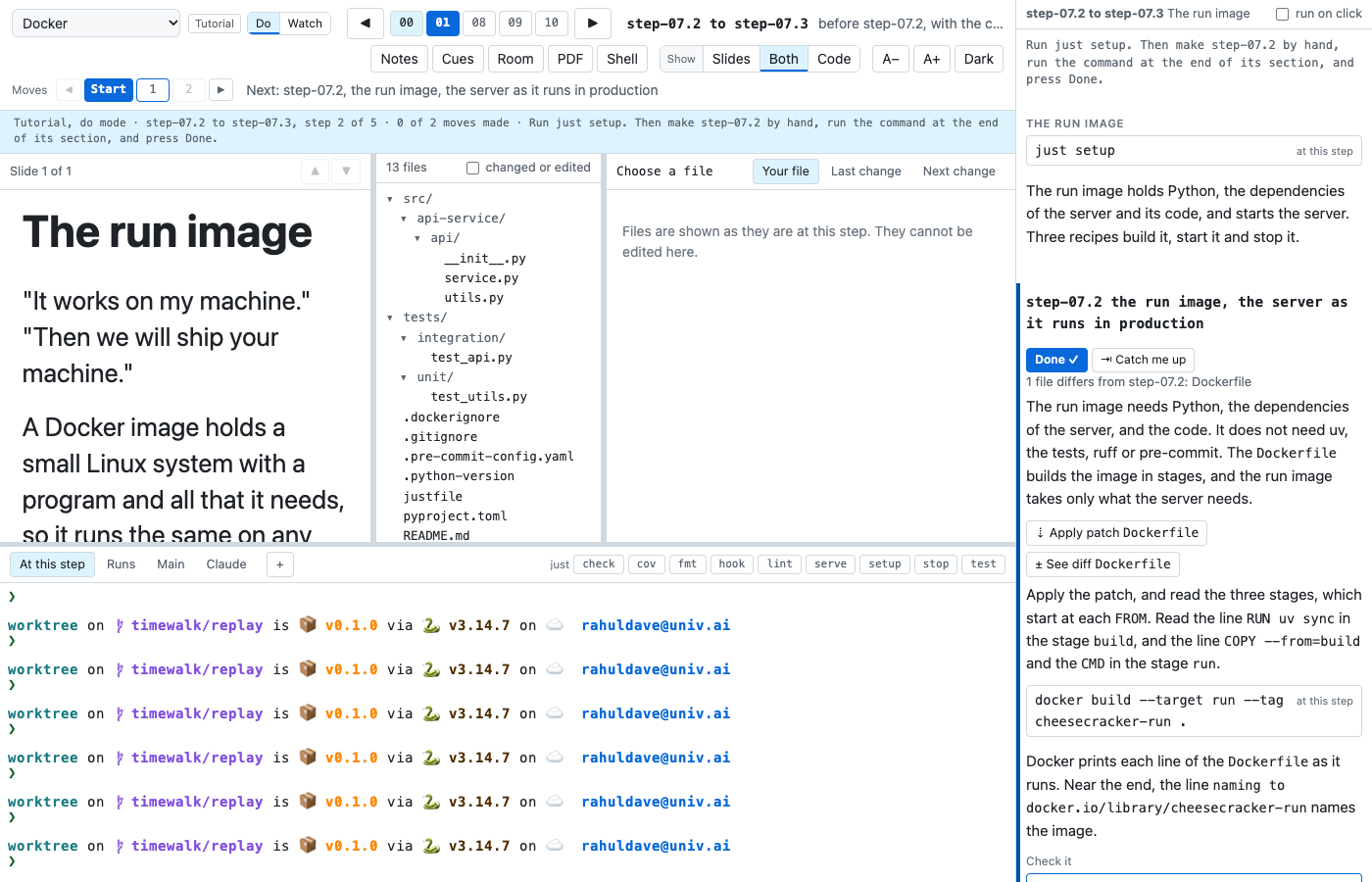
In the walk Docker, the move step-07.2 writes the Dockerfile that builds the run image. Before you start, the
Dockerfile is the one file that differs, and its patch is ready to apply:
Next, Read a walk without timewalk shows the pages of the class.