How timewalk works
timewalk is one server process, one web page, a set of shells, and two working copies of your repository. You can open the page in one or more windows. This page says what each piece is and where it is. It also says what each button does in each folder. Then you know what happens before you click.
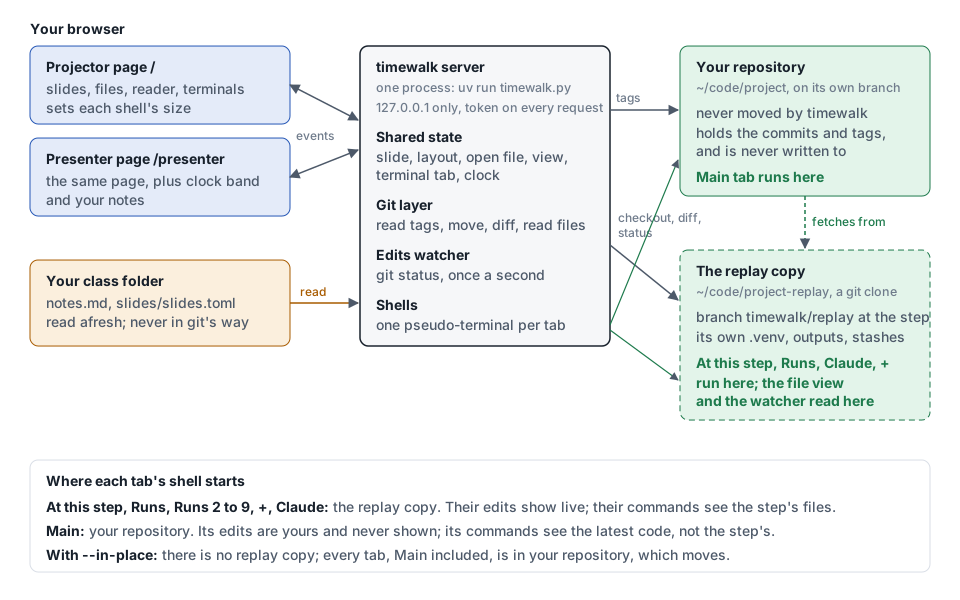
The picture draws a projector page and a presenter page. Read them as the page, in one or more windows.
Any window can show the notes and, with --clock, the clock band.
The folders
| Folder | What it is | What works in it | Does it move? |
|---|---|---|---|
Your repository, ~/code/project |
The repository that you give to timewalk, on its current branch | The Main tab. The recipe buttons, when Main is in front | Never, unless you give --in-place |
The replay copy, ~/code/project-replay |
A git clone of your repository, on the branch timewalk/replay at the current step |
At this step, Runs, Runs 2 to 9, Claude and +. The file list, the reader, the edits watcher and the recipe buttons | Yes. Each move checks out a step here |
| Your class folder | The folder with your notes and slides. timewalk does not use it as a repository | The server reads notes.md and the slide files from it again each time. Save in the notes column writes one section of notes.md |
No. timewalk writes only the notes file there |
| The folder of timewalk | The code. uv run runs it in its own environment, which uv keeps in its cache |
Nothing. The shells remove that environment from their PATH |
No |
A clone is a repository of its own, made from another one. A branch is a name for a line of commits. HEAD is the commit that a working folder is at.
Where clones are used, and where not
Used: the replay copy. timewalk makes one replay copy for each repository that you browse. The first
start makes it with these commands, in a folder .project-replay.making that it then renames:
git clone --no-checkout --origin home ~/code/project .project-replay.making
git checkout -B timewalk/replay <the first step's commit>
In the replay copy, your repository is the remote home. Each later start finds the replay copy, checks
that home is your repository, and fetches your branches, HEAD and tags. The replay copy then goes on
from where it stopped. See The replay copy.
Not used:
- Your repository is the main working copy. The server reads its tags and its commits. It writes no config, hook, branch, tag or stash there.
- With
--in-place, timewalk makes no replay copy. Moves check out steps in your repository, and every tab, Main too, is in it. A move with edits asks, and then stashes them, because timewalk writes no branch in your repository. The server refuses--discard-editswith--in-place, so a move cannot drop your real work. - Your class folder is never a working copy of anything.
- The PDF export,
timewalk-pdfor the PDF button, uses no git. It reads the manifest, the slide files and the notes file.
With --replay PATH, the replay copy goes where you say, and not beside your repository. A walk kit
uses --replay worktree, so the replay copy is the folder worktree/ of the kit.
The demo adds one layer. demo/timewalk-demo is a git submodule of timewalk. A submodule is a
repository of its own inside another repository. Git keeps the data of this submodule in
.git/modules/demo/timewalk-demo of timewalk. The replay copy of the demo, demo/timewalk-demo-replay, is
a clone of the submodule, and the git of timewalk ignores it.
The tests and the screenshots never touch your repositories or the replay copy of the demo. The
tests make small repositories in temporary folders. docs/screenshots.py clones the demo into a
temporary folder, and timewalk makes the replay copy of that clone beside it there.
A walk kit, in order
A walk kit is a repository that holds the notes and the slides of a walk, and a justfile. A student
forks the kit and runs just present in it. Make a walk shows how to make one. These things
then happen, in this order:
just presentruns the recipesetupfirst.- If the folder
repo/does not exist,setupclones the project into it. It clones the fork of the student, if the student has a fork of the project, and else the upstream project. setupadds the upstream project as the remoteupstream, and fetches its tags. The tags mark the steps.just presentruns timewalk from GitHub with uvx, onrepo/, with--replay worktree. uv downloads timewalk the first time, and keeps it in its cache.- timewalk makes the replay copy in
worktree/, if it does not exist. The replay copy is a clone ofrepo/, on the branchtimewalk/replay. The folder keeps its old name. - timewalk prints the address of the page. The student opens it.
| Folder of the kit | What it is | What works in it |
|---|---|---|
| The top of the kit | The notes, walk.md, the slides and the justfile. Tracked in the fork of the student |
Save in the notes column writes walk.md |
repo/ |
A clone of the project. Git ignores the folder | The Main tab. The student commits here, and pushes to their fork of the project |
worktree/ |
The replay copy of repo/. Git ignores the folder |
At this step, Runs, Claude and +. A move keeps the edits here on a saved branch |
What each control does
| Control | What happens | Git, in which folder |
|---|---|---|
| A step button, Left, Right, the step arrows | Finds the untracked files in the way. Keeps the commits, the staged changes, the edits and the files in the way of a learner on a saved branch. Then moves, and tells every window. Every window except the Room window names the branch | git ls-tree -r, git ls-files --others, git write-tree and git commit-tree for the staged changes. Then, with a copy of the index, git add --update, git update-index --add for the files in the way, git write-tree and git commit-tree. Then git branch timewalk/saved/<step>. timewalk deletes the files in the way that it kept, and runs git reset --hard and git checkout -B timewalk/replay <step>, never with --force. All in the replay copy. See What timewalk does with git |
A move, with --in-place |
Looks for edits, refuses if an untracked file is in the way, and asks about edits. Then moves | git status, git ls-files --others, git ls-tree, then git checkout --detach <step>, in your repository. See With --in-place |
Set the edits aside and move, with --in-place |
Stashes the edits with the name of the step, then moves | git stash push -m "timewalk: edits made at step-NN", in your repository |
| In a tutorial, Show ▶, ⇥ Catch me up, or a move button in watch mode | Moves to the commit of a move, as a step button does | The same, with the commit of the move |
| In a tutorial, Done ✓, or the button of the next move in do mode | Changes the shared count of moves done. The code does not move | None |
| In a tutorial, Do or Watch | Changes the shared mode, in every window | None |
| Up, Down, the slide arrows | Changes the shared slide number. On a document, Up and Down scroll it, and Alt with Up or Down changes the slide | None |
| Show: Slides, Both, Code | Changes the shared layout, in every window | None |
| Shell | Turns Shell mode on or off, in every window. In Shell mode, the window for the class sets the size of each shell | None |
| Room | Opens a second window with room=1 and cues=off in its address. In Chrome and Edge, it asks to place windows, and opens the window on the other screen |
None |
| Cues | Hides or shows the > lines of the notes, in this window |
None |
| A scroll of the slide, the file or the notes | Sends the place, as a fraction, to every other window over the events socket | None |
| A scroll of a terminal | Sends the number of lines that the terminal is scrolled back, to every other window over the events socket | None |
| The handles between the panes | Change the width of the slides, the file list or the notes, or the height of the terminals, in this browser. A double-click resets a width | None |
| A file in the file list, Your file | Reads the file from disk, and refuses paths outside the copy | None. It reads a file in the replay copy |
| At step-02.3 | In do mode, the file as a move leaves it | git cat-file blob <move>:<file>, in the replay copy |
| Last change | The diff of the step, or of the move just made, for that file | git diff <before> <after> -- <file>, in the replay copy |
| Next change | The diff of the next step, or of the next move, for that file | git diff <before> <after> -- <file>, in the replay copy |
| Your edits | The edits since the commit that the replay copy stands on | git diff HEAD -- <file>, in the replay copy |
| ± See diff or ▤ See file in the notes, or a click on an excerpt | Opens the change or the file in the reader, in every window | None. It reads, as the views of the reader do |
⇣ Apply patch, ⇄ Replace with the move’s file, on a patch$ line in do mode |
Types a command into the At this step tab, and runs it | git diff <before> <move> -- <file> | git apply --intent-to-add, or git checkout <move> -- <file> and git reset -q -- <file>. Before Replace, the server keeps your file on a branch timewalk/saved/<move>-yours. The shell writes the file, as an edit |
| “Your files match”, every two seconds in do mode | Compares the files on the disk with the commit of the move, by content and by whether each file can run. A match marks the move done, once | None. git diff --name-only, git ls-tree and git hash-object read |
| Open in VS Code | A link that opens the file in your editor | None. The editor opens the file |
| At this step | A login shell | Starts in the replay copy |
| Runs, Runs 2 to 9, + | More login shells, each with its own process | Start in the replay copy |
| Claude | A login shell that types claude (or --assistant) when it starts |
Starts in the replay copy |
| Main | A login shell | Starts in your repository |
| A recipe button | Types just <recipe> into the tab in front |
just --dump lists the recipes, in the replay copy, or in your repository when Main is in front |
| A command in the notes | Types the command into its tab, and does not press Enter. That tab comes to the front in every window, and gets the keyboard in the window where you clicked | None until you press Enter. Then the work of the command, in the folder of that tab |
| run on click, in the notes column | A click on a command also presses Enter, in this window | The work of the command, in the folder of that tab |
| Notes | Shows or hides the notes column, in this window | None |
| ✎ Edit, then Save, in the notes column | Writes the section of the current step into the notes file, unless the section changed in the file since the page read it. Every window then shows the new notes | None. The server writes the notes file in your class folder |
| Makes a PDF of the slides, one page each, and downloads it | None. It reads the manifest and the slide files | |
▶ Start the clock, with --clock |
Records the start time. ↺ Reset clears it | None |
| (no control, each second) | The edits watcher looks for edits, and tells every window when they change | git status, in the replay copy |
| (no control, each second) | The content watcher looks at the notes file, the manifest and each slide file. When one changes, every window draws the notes and the slide again | None |
Each shell starts in its folder. A cd in one shell moves that shell and nothing else. The file list
and the reader stay on the replay copy.
What is kept where
| Kept | Where | Lost when |
|---|---|---|
| The steps, with names, commits and notes | timewalk reads them from the tags when it starts | timewalk reads them again at the next start. Restart after you change the tags |
| The current step | Git, as the HEAD of the replay copy. timewalk asks git again each time | Never. A restart finds the replay copy where it was |
| In a tutorial, the move on show | A file in the git folder of the replay copy, timewalk-place.json |
Never. A restart comes back at the same move |
| Slide, layout, open file, view, tab in front, clock, and in a tutorial the mode and the count of moves done | The memory of the server, shared by every window | timewalk stops |
| Commits, staged changes and edits that a learner made before a move | Saved branches in the replay copy, timewalk/saved/<step> |
You delete them, or you remove the replay copy |
| Where each step was left: its slide, and the scroll of its slide, notes and open file | The memory of the server. A move back to a step brings them back | timewalk stops |
| Each shell, and the last 256 KB of its output | The server, with one process for each tab, on a pseudo-terminal | timewalk stops. The shells end, and their commands end too, unless you started a command with nohup and & |
| Theme, text size, terminal height, run on click | The local storage of the browser | You clear it |
| If the notes column shows | The session storage of the window | You close the window |
| Edits to tracked files | On disk in the replay copy until the next move. Then on a saved branch | Never by a move. You discard them with git restore, or you remove the replay copy |
Untracked files, for example .venv, outputs and databases |
On disk in the replay copy. A file in the way of a move goes on a saved branch | You delete them, or you remove the replay copy |
| Slides | Your class folder, which timewalk reads again each time | Never. timewalk does not write them |
| Notes | The notes file in your class folder, which timewalk reads again each time. Save writes one section of it | Never. Save changes only the section of the current step |
A pseudo-terminal is the device that the operating system gives a shell in place of a real terminal. A tracked file is a file that git records, and an untracked file is a file that git does not record.
If a terminal checks out another commit, the replay copy is no longer at a step. Every window then says “between steps”. To go back, choose a step.
One move, in order
- A window asks the server to move to a step, or to a move of a tutorial.
- The server lists the untracked files with
git ls-files --others, and the files of the new step withgit ls-tree. An untracked file is in the way when the step has a file or a folder of its name. It is also in the way when the step has a file where its path has a folder. If a git repository of its own is in the way, the server refuses and names it. - If something is staged, the server makes a commit of the index with
git write-treeandgit commit-tree. The index is the list of changes that the next commit holds. - The server copies the index to a temporary file. In the copy, it adds the edits with
git add --update, and the files in the way withgit update-index --add, ignored or not. It makes a commit of the copy on top. Your files, your index and your stash do not change. - If a learner has work since the last move, the server puts a saved branch on it,
git branch timewalk/saved/<step>. Work is a commit, a staged change, an edit or a file in the way. If a rebase,git am, a cherry-pick or a revert is half done, the server ends it with--quit. - The server deletes the files in the way, which the saved branch now holds. It runs
git reset --hard, and thengit checkout -B timewalk/replayto the commit of the step. It never uses--force, so git refuses to overwrite a file that the server did not keep. If the checkout fails, the server puts the kept work back into the files. - The server sets the slide to the one where you left this step. A step that you have not visited starts at its first slide. The server then tells every window. Each window then scrolls the slide, the notes and the open file to where you left them. It presses Enter in each idle shell at the step, so that the shell draws its prompt again. See The terminals.
- Each window reads the new state, the file list, the recipes, and the notes. An open file stays open, and the window reads it again at the new step. If the move made a saved branch, each window except the Room window names the branch in a notice.
With --in-place, steps 2 to 6 are different:
- If an untracked file is in the way of the step, the server refuses and names the file.
- The server asks git for edits. If there are edits, and the page did not ask to set them aside, the server refuses and names them. The window then asks you.
- If the window asked to set the edits aside, the server runs
git stash pushwith the name of the step. - The server runs
git checkout --detachto the commit of the step.
A move does not touch the shells. A command that runs in Runs continues, and the files change under it. See The terminals.
One page in several windows
timewalk serves one page, at the address that it prints. Each window on that address keeps a socket to
the server for events. A socket is an open connection between the window and the server, which carries
messages both ways. The old address /presenter sends the browser on to the page.
When a window changes the step, the slide, the layout, Shell mode, the open file or the tab in front, it tells the server. The server then tells every window. In a tutorial, the server also shares the mode and the count of moves done. Each window keeps its own choice to show the notes and the cues.
A scroll of the slide, the file or the notes goes to every other window too, as a fraction of the whole. A scroll of a terminal goes as a number of lines. The browser keeps the theme, the text size, the terminal height and run on click. See The page.
Every window shows the same shells. Each shell has one size, and the window that you last typed in sets it. Another window draws the same shell in the space that it has. In Shell mode, the window for the class sets the size, and the other windows show the same rows and columns.
Security, in one line
The server listens on 127.0.0.1 only. Each page, request, socket and file needs the token in the
printed address. The token is the secret value after ?t=. See Safety.