The page
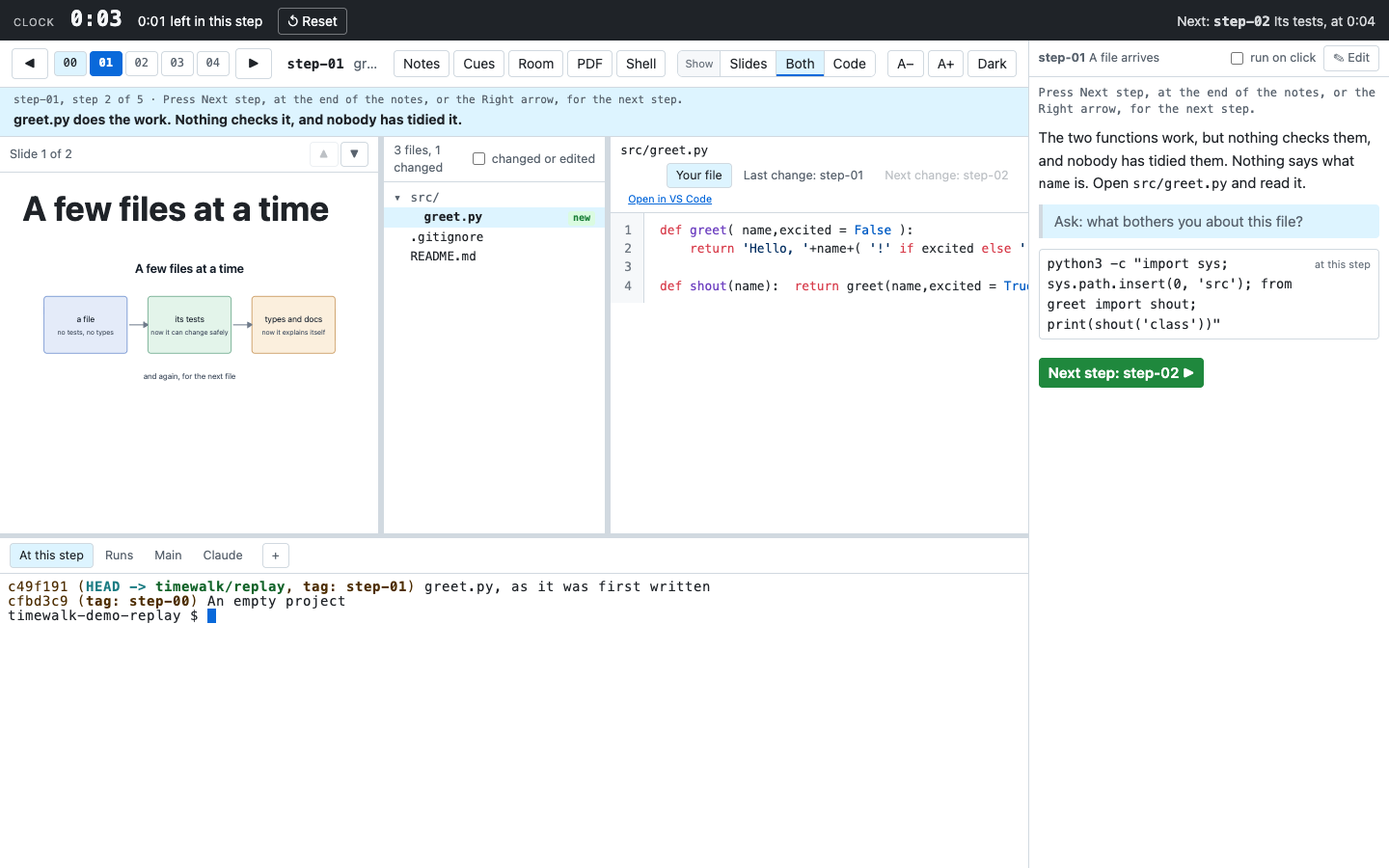
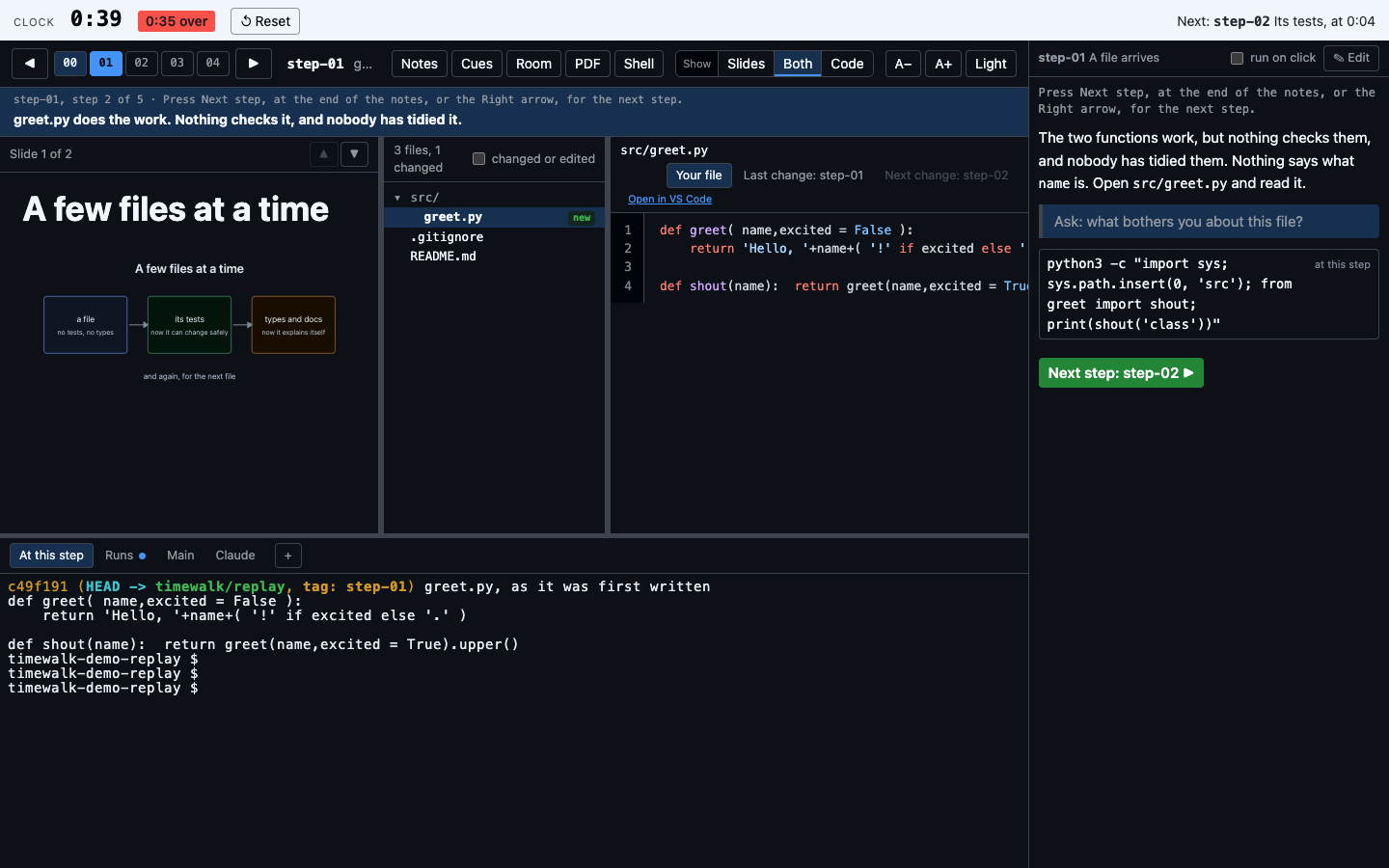
timewalk serves one page, at the address it prints. Everything on the page follows the step of the replay copy. The replay copy is the second working copy that timewalk moves from step to step.
Several windows
You can open the address in more than one window, for example one on the projector and one on your own screen. Every window shows the same step, so you can control the room from your own screen. The server keeps the shared state, and it sends each change to every window.
| Shared by every window | Kept by each window | Kept by each browser |
|---|---|---|
| The step, and the walk | If the notes show | The theme, dark or light |
| In a tutorial, the mode and the moves marked done | ||
| The slide | If the cues show | The text size |
| Slides, Both or Code, and Shell | Which terminal has the keyboard | The height of the terminals |
| The open file, and its view | If a click on a command runs it | |
| The scroll position of the slide, the file, the notes and each terminal | The widths of the slides, the file list and the notes | |
| The terminal tab in front | ||
| The terminals themselves: the same shells |
When you scroll a slide, a file or the notes, every other window scrolls to the same place. Because the windows can differ in size, the place is a fraction of the whole. Half way down in one window is half way down in every window. A terminal is different. When you scroll a terminal back, every other window scrolls the same shell back by the same number of lines. To teach with one window for you and one for the class, see Teach a class.
Each step also remembers where you left it. Move from step 6 to step 7 and back, and step 6 comes back at the same slide. The slide, the notes and the open file also come back at the same scroll. A step that you have not visited yet starts at its first slide, at the top. timewalk keeps this memory while it runs.
A setting of the browser applies to every window of that browser. To give the projector another theme or text size, open its window in another browser, or in a private window.
A shell has one size. The window that you last typed in sets the size. A window that only shows a terminal leaves its size alone, so two windows of different sizes do not fight over it.
The step bar
The step bar has one button for each step, with numbers from 00. A step is a point in the history, and by
default it is a git tag that matches step-*. The bar fills the button of the current step, and shades
the buttons of earlier steps.
Next to the buttons, the bar shows the name of the step and the subject of its commit. Under the bar, the status band says what to do now. See The status band.
To go to a step, do one of these:
- Click its button.
- Click an arrow button.
- Press Left or Right on the keyboard.
Sometimes the replay copy is on a commit that is not a step, for example after someone runs git checkout
in a terminal. Then the bar says “between steps”. To go back, choose a step.
A move never asks about edits in the replay copy. It keeps them on a saved branch, and a notice under the
bar names the branch, in every window except the Room window. See
Live edits. On a replay copy that an older version made as a worktree, with
--discard-edits, the bar says “Moves discard edits”. See Live edits.
If you start timewalk with --toc, a menu at the left of the bar lists the walks of the class. A walk is
one path through the history, with its own notes and slides. Choose a walk, and every window changes to
its steps. See Several walks.
- The menu puts the walks in two groups, Narratives and Tutorials, when the class has both kinds. A narrative goes from tag to tag. A tutorial also stops at the small commits between the tags.
- A label beside the menu says the kind of the walk on show.
- The switch Do or Watch shows beside the label in a tutorial, at every step. It changes the mode of the tutorial in every window. See Do mode and watch mode.
- The Room window shows the title of the walk in place of the menu, with its kind. For a tutorial, it also shows the mode, for example “(tutorial, do mode)”.
In a tutorial walk, a step can have moves, which are the small commits before its tag. A row of moves then shows under the bar, in every window. It has the arrows ◀ and ▶, and the buttons Start, 1, 2 and so on. In do mode, the arrows mark moves done. In watch mode, they check out the commit of the next or the previous move. See Moves on the page.
The status band
The status band is the band under the step bar. Every window shows the same band. It has up to three parts:
- The direction, in the font of the code. It names the kind of walk, and in a tutorial its mode. Then it gives the step, for example “step 3 of 6”, and in a tutorial the count of moves made. It ends with what to do now, and names a control on the screen, for example Next step or Show.
- The description of the walk, at the first step of the walk only. It is the
descriptionof the walk intoc.toml. A sentence after it says what the kind of walk asks of you. In a tutorial, that sentence depends on the mode. - The message of the tag, the note that the audience sees. Its first line is in bold, and the rest follows it on the same line.
Without --toc, the page has no walk. The direction then gives only the step and what to do, and the band
has no description.

The buttons on the right of the bar
| Button | Does |
|---|---|
| Notes | Shows or hides the notes column in this window. The button shows when timewalk has a notes file |
| Cues | Shows or hides the cues in this window, the lines of the notes that start with >. The prose and the commands stay |
| Room | Opens the window for the class: on the projector at full size where the browser allows it, with no cues and no clock band. See Teach a class |
| Full screen | Only in the window for the class. Fills the screen with that window |
| Makes a PDF of the slides, one page each, and downloads it | |
| Shell | Gives the terminals the space of the slides, the file list and the reader, in every window. The notes stay. Press it again to go back. See Shell |
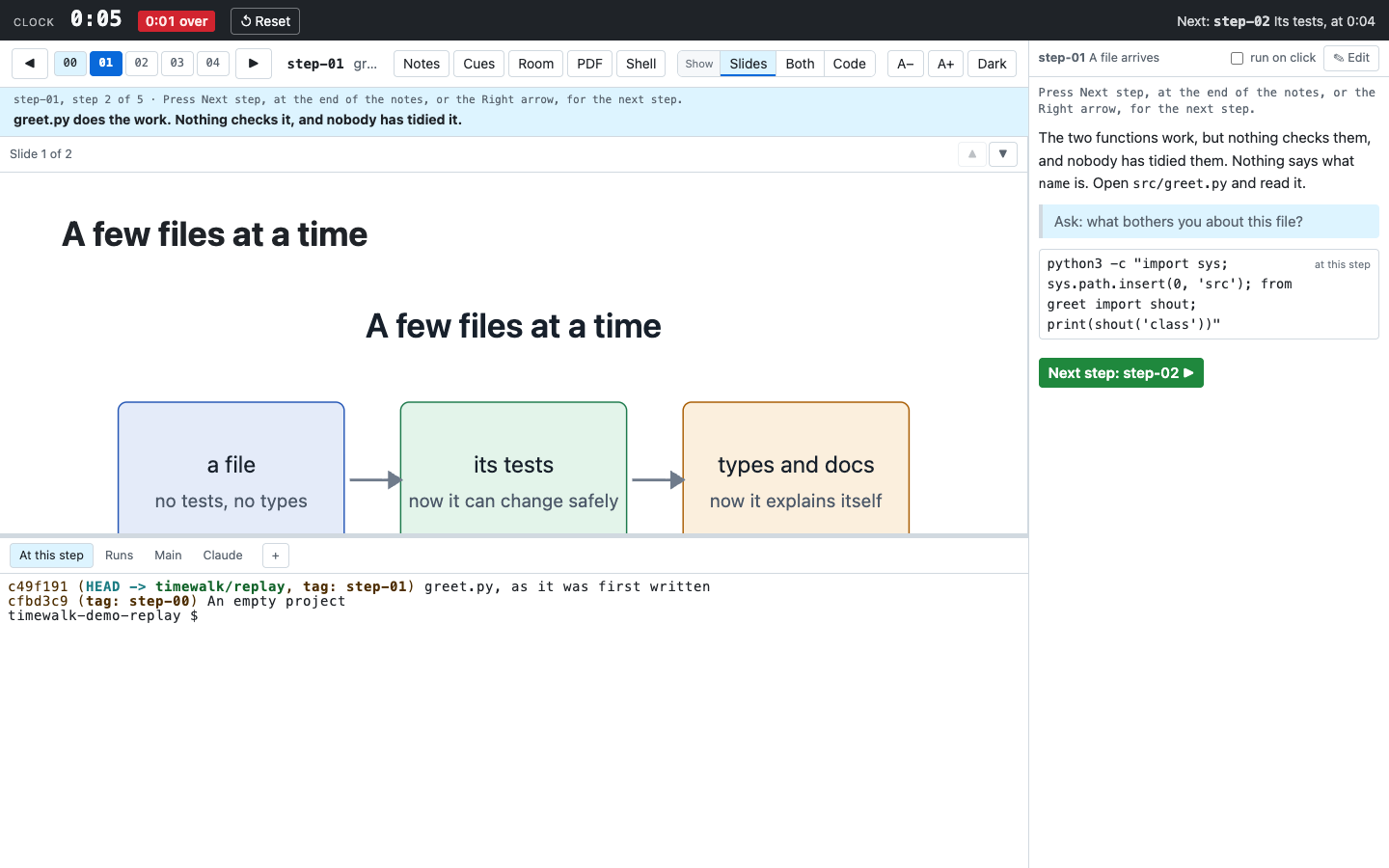
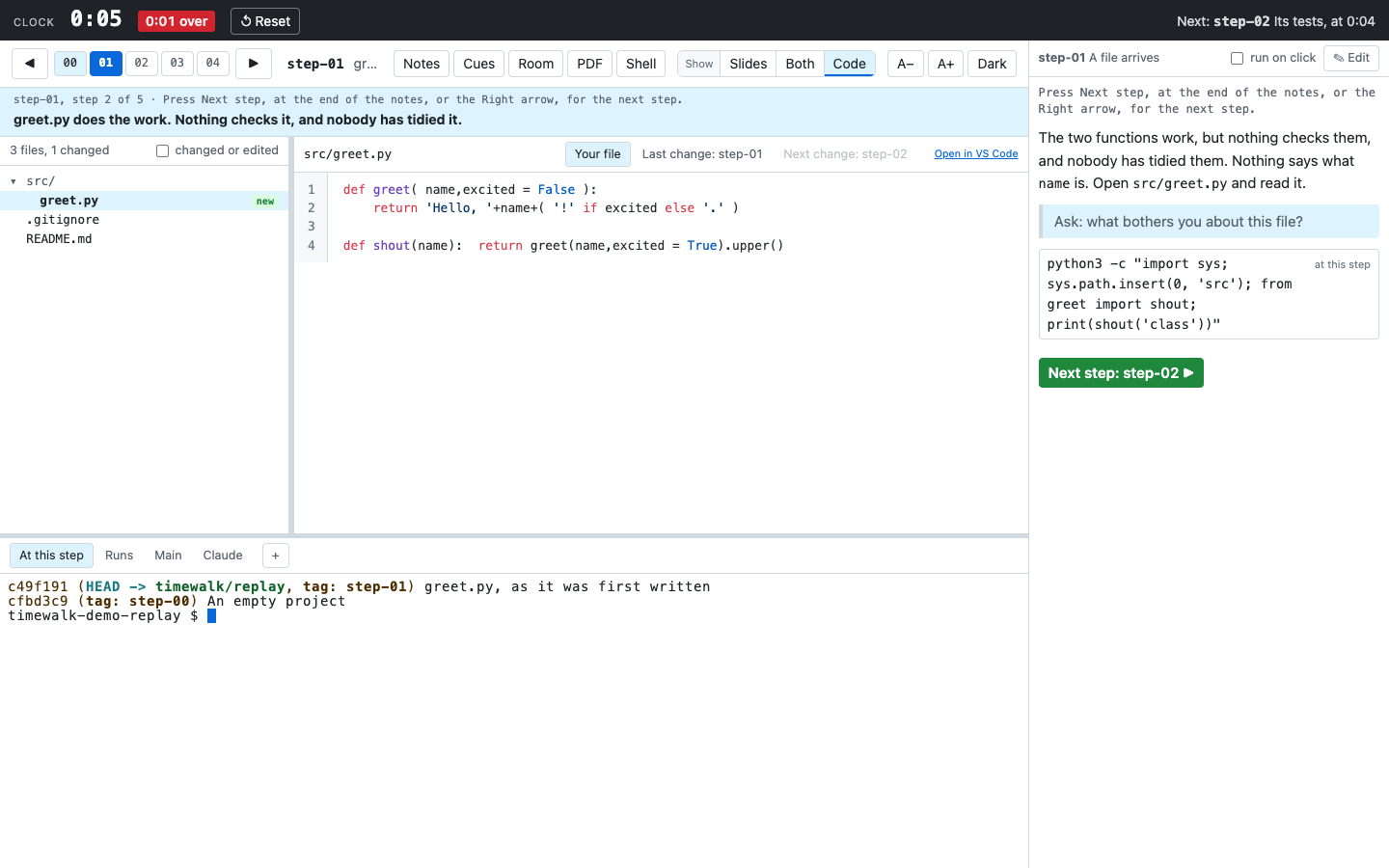
| Show: Slides, Both, Code | One control, with the label Show: choose what fills the page, in every window |
| A−, A+ | Change the size of all the text in this window. The terminals use the same size |
| Dark, Light | Change the theme, light or dark, in this browser. See The theme |
The PDF button makes the same PDF as the export command, without the notes, which are for this page. The export uses the browser on your machine, so it can take a few seconds. See Slides and documents.
The theme
The page uses the theme of GitHub, Primer, in a light mode and a dark mode. The theme sets three things:
- The colours of the page, for example the panes, the buttons and the bands.
- The colours of the code, in the reader, the notes and the slides. highlight.js colours the code with
its GitHub stylesheets,
githubandgithub-dark. - The colours of the terminals, GitHub Light Default and GitHub Dark Default.
In the dark theme, the page also inverts the colours of each SVG picture, on a slide or in the notes. Black lines become white, and the hues stay near their own. A photo, for example a PNG or a JPEG, keeps its colours. See Slides and documents.
Dark and Light change the mode. The browser remembers the mode, so it applies to every window of that browser.
The widths of the panes
Thin handles sit between the panes. Drag a handle to change how much room each pane gets.
- The handle between the slides and the file list changes the width of the slides. Make the slides narrow to show more code, and wide again for the next slide.
- The handle between the file list and the reader changes the width of the file list.
- The handle on the left edge of the notes changes the width of the notes column. On a narrow screen, where the notes sit under the terminals, the handle is on their top edge and changes their height.
- The bar above the terminals changes the height of the terminals.
To put a handle back to its default width, double-click it. The browser remembers the widths. The handle of the slides shows only in the Both layout.
Back to the top
When you scroll down a slide, a file or the notes, an ↑ Top button shows in the header of that pane. Click it to go back to the top. The button hides again at the top. ↑ Top goes to the top of one long slide. To go to the first slide of the step, use ⇤ First, as in Slides.
The keys Home and End take the pane under the mouse to its top or its bottom. Both are ordinary scrolls, so every other window follows, and the step remembers the place.
Slides
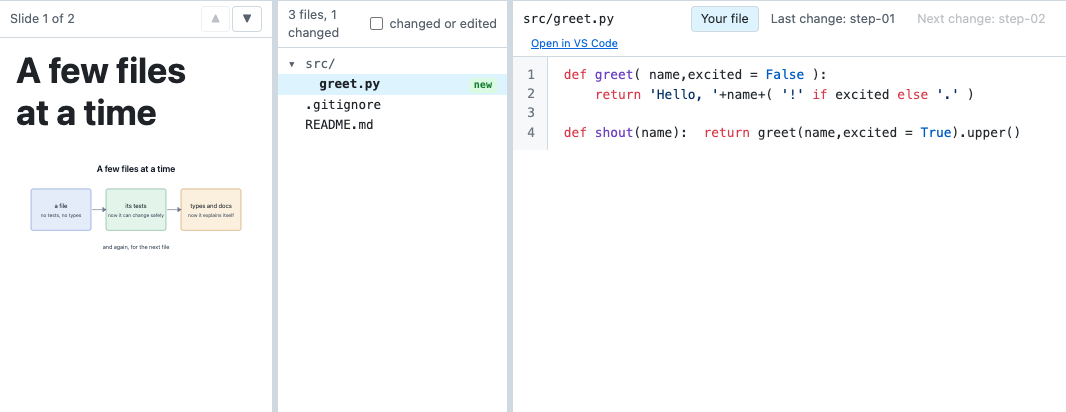
The slides pane shows the slides for the step, from the manifest. The manifest is the TOML file that says which slides go with which step. The top of the pane shows the number of slides and the arrows. If the step has more than one slide, Up and Down change the slide.
Past the first slide, a ⇤ First button shows beside the arrows. Click it to go back to the first slide of the step. Shift+Up goes to the first slide too, and Shift+Down goes to the last.
At the last slide, a green Next step button shows in the head of the pane, with the name of the next step. It goes to that step, in every window. In a tutorial, it shows only when every move of the step is made. The Room window does not show it.
A step can show one longer Markdown document instead, or a document among its slides. A document
scrolls, and Up and Down scroll it. A line such as $ uvx pytest -q on a slide or in a document
is a command button, as in the notes. See Slides and documents.
The file list
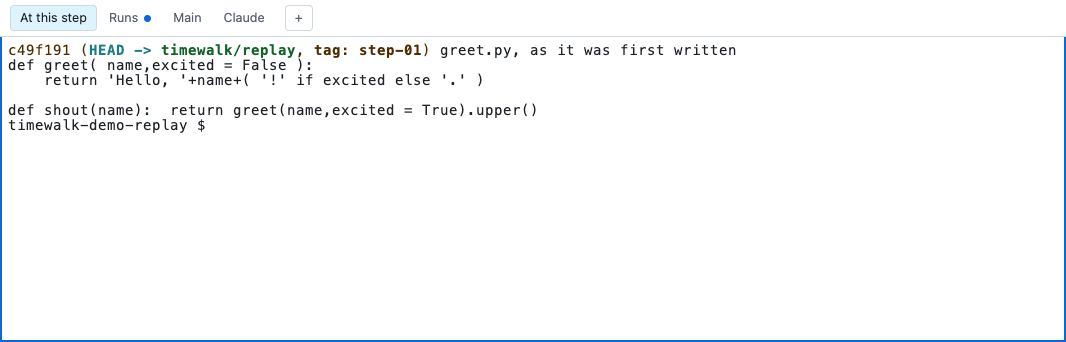
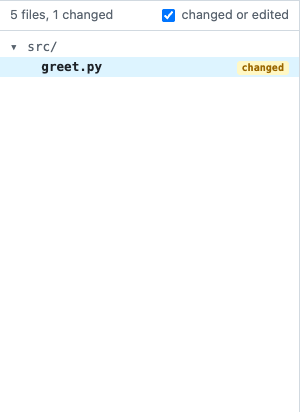
The file list shows the tracked files of the replay copy as a tree. A tracked file is a file that git records. The list marks the files that the step added as new, and the files that it modified as changed. The list shows the files that the step removed under the tree.
An edit is a change to a tracked file that nobody has committed yet. If a command in a terminal edited a file after the commit of the step, the list marks the file as edited. To see the size of the step in lines, hover over the count at the top.
The changed or edited box shows only those files. On a large project, folders with no changes start closed.
The reader
The reader is the pane that shows one file. To read a file, click it in the file list. A tab at the top of the reader chooses the view. Each label of a change names the step or the move that it shows:
| View | Shows |
|---|---|
| Your file | The file as it is on the disk now, in the replay copy |
| At step-02.3 | Only in a tutorial, in do mode. The file as a move leaves it, read only. A file item of a move that the learner has not made yet opens it. See Do mode and watch mode |
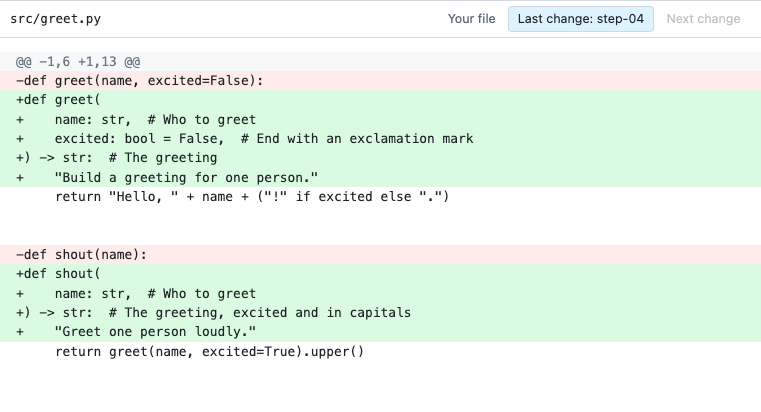
| Last change: step-03 | What the step just made changed in the file, against the step before. In a tutorial, the change of the move just made |
| Next change: step-04 | What the next step changes in the file. In a tutorial, the change of the next move. The view is empty at the last step, and at the last move of a step |
| Yours and step-02.3 | Only in a tutorial, in do mode. Your file against the file as the move that you make leaves it. See The reader in a tutorial |
| Your edits | The edits to the file since the commit that the replay copy stands on. The view shows only when the file has edits |
A diff is the list of lines that a change added and removed. Last change and Next change read the commits, and not the disk. So they show a change even before its file exists. A button in the notes can also open the change of another move. The view then says, for example, Changes in step-02.1.
You cannot edit a file in the reader. The reader shows new edits within about a second. See Live edits.
Open in your editor
On Your file, a link Open in VS Code opens the file in your own editor, at the line that the notes marked. To choose another editor, hold Alt and click the link. Each Alt+click changes to the next editor, in the order VS Code, Zed and Cursor. The browser remembers the choice.
The link shows only in a window on the machine that runs timewalk. The Room window never shows it.
The notes column
If you start timewalk with --notes, a column on the right shows the notes for the step. The notes hold
the prose of the step, its cues and its commands. The first line of the column says what to do now, as the
status band does. At the first stop of a walk with an intro, the intro comes next, under “About this
walk”. A green Next step button ends the notes. See Notes and
The intro of a walk.
A strict walk compares pyproject.toml and uv.lock line by line. A learner who runs uv add --dev ruff
a month after the author gets a newer ruff, and the files never match. So in do mode of a strict walk, a
do$ line of uv add, uv remove, uv lock, uv init, uv version or uv sync has no button. The
column says that the author ran it. In its place, the column gives a command that takes the files from the
move’s commit.
A line of uv run runs a program, so it keeps its button. If the program also writes
pyproject.toml or uv.lock, the command that takes them comes after that button. See
A strict walk.
To find which files a uv line writes, timewalk first runs the move’s do$ lines in a scratch copy of the
project. Sometimes that run fails, for example when the computer has no network. The column then says why,
and gives the uv line as an ordinary button. ↻ Try again runs the lines in the scratch copy again.
The terminals
A row of tabs goes along the bottom of the page. Each tab is a terminal with a real shell, the program that runs your commands.
- At this step and Runs run in the replay copy.
- Main runs in the repository that you gave to timewalk.
- Claude starts Claude Code at this step.
- + opens more terminals.
See The terminals.
Recipes
A recipe is a task in a justfile, which you run with just. If the folder of a terminal has its own
justfile, its public recipes show as buttons beside the tabs. A click types just <recipe> into the
terminal in front and runs it. timewalk reads only a justfile in that folder. It ignores a justfile in
a parent folder, because that file belongs to another project.
If a recipe needs an argument, the click types the command but does not run it. You then finish the
command. The page highlights the recipes that are new at this step. If Main is in front, the buttons
show the recipes of your repository. A folder with no justfile shows no recipe buttons.
Shell
Shell gives the terminals the whole space of the slides, the file list and the reader. Use it when the class works in the shell for a while. Every window follows, as with the layout. The notes column stays. Press Shell again, or Alt+Enter, and the page shows the layout that it had before.
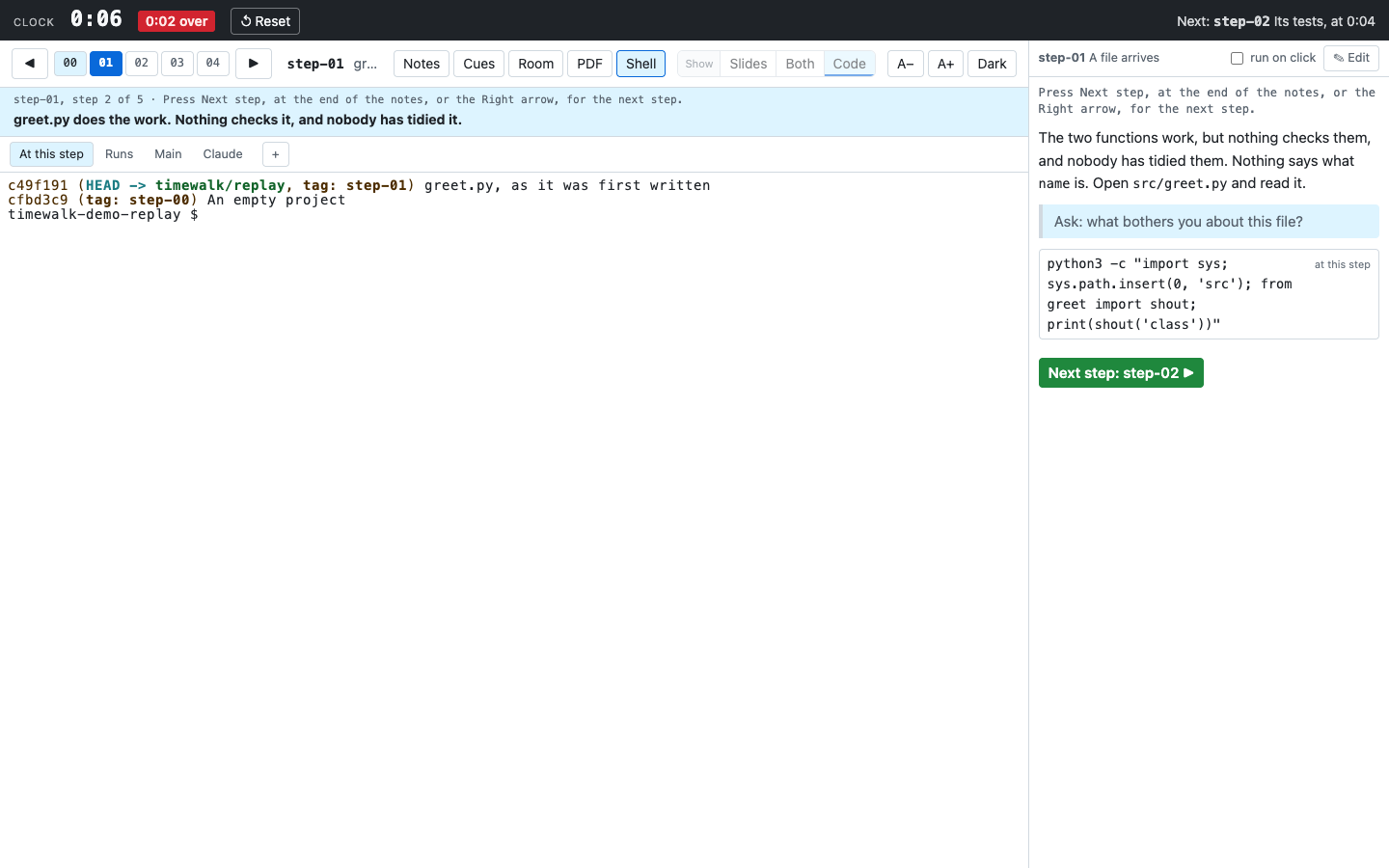
In Shell mode, the window for the class sets the size of each shell. The class reads the projector, so the shell takes the rows and columns of the projector. Your window shows the same rows and columns, and makes its text smaller or larger to fit them. When Shell is off, the window that you last typed in sets the size again. Without a window for the class, Shell mode keeps that rule too.
The keyboard
| Key | Does |
|---|---|
| Left, Right | The previous or next step |
| Up, Down | The previous or next slide, when the step has more than one. On a document, or with one slide, they scroll |
| Alt with an arrow | Moves the step or the slide, from anywhere, a terminal included |
| Shift+Up, Shift+Down | The first or the last slide of the step |
| Shift+Right, Shift+Left | In a tutorial: the next move (do mode: marks it done; watch mode: checks out its commit), or back to the step’s Start. In a terminal, add Alt |
| Home, End | The top or the bottom of the slide, the file or the notes under the mouse |
| Alt+Enter | Shell on or off |
| Alt+1, Alt+2, Alt+3 | Slides, Both, Code |
| Alt+` | Slides or Code: from one to the other |
| Alt+\ | Shows or hides the notes, in this window. Not Alt+N, which types ~ on some Mac keyboards |
The Alt keys work everywhere, a terminal included. On a Mac, Alt is the Option key.
The page keeps the arrow keys until you click into a terminal. Then the terminal has the keys, and a blue edge around it shows this. The arrows then move through the history of your shell.
To give the keys back to the page, click anywhere else. A command that you click in the notes column also gives its terminal the keys, in the window where you clicked.