timewalk
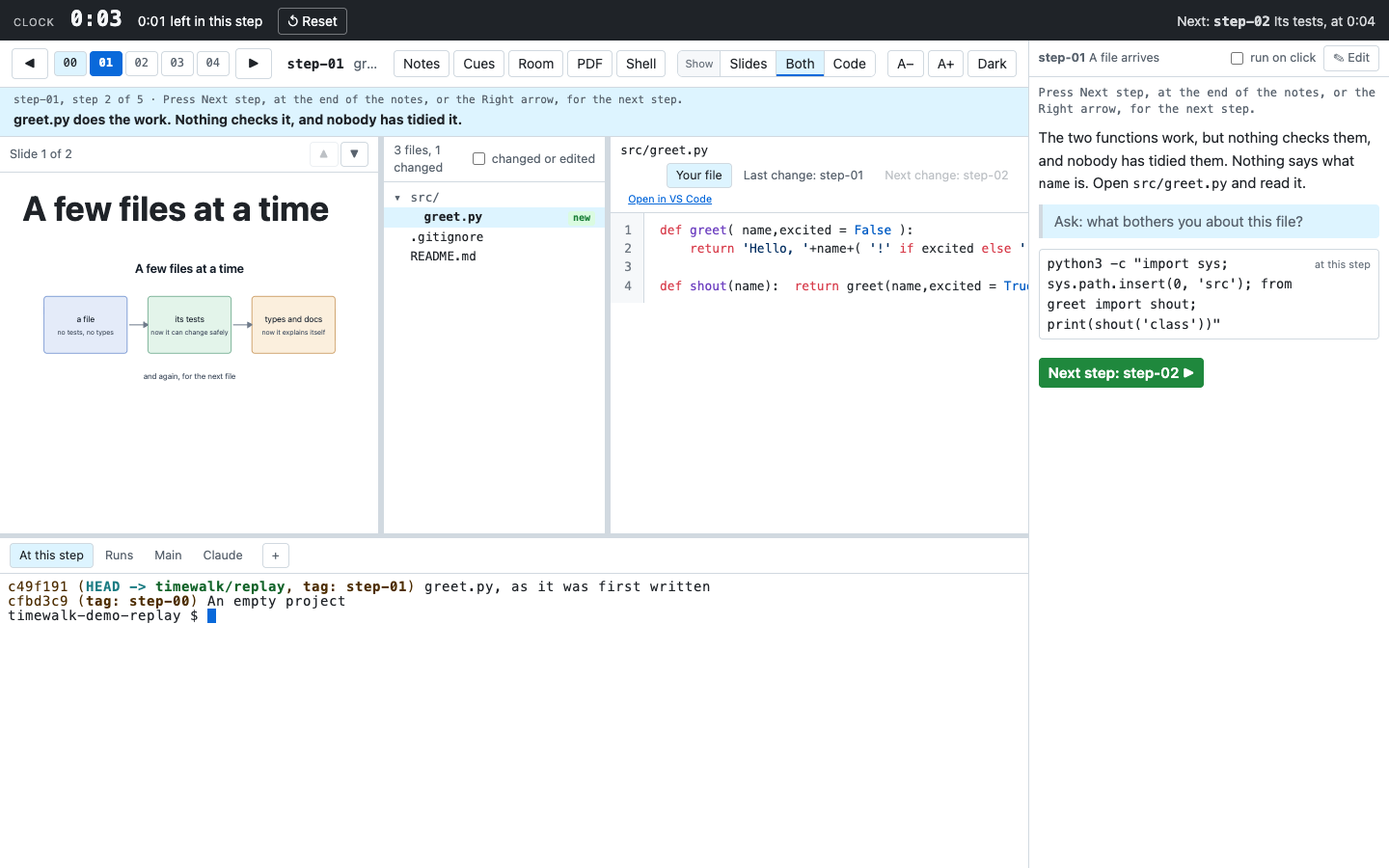
timewalk lets you teach a project through a replay of how its authors built it. Each step of the project is a git tag, a name that git keeps for one commit. At every step, timewalk shows the slides that you wrote for the step. It also shows the files as they were then, the changes that the step made, and real terminals in the repository at that step.
timewalk serves one page. You can open it in several windows, for example one on the projector and one
on your own screen. Every window shows the same step, so what you do on your screen happens on the
projector too. With --notes, the page shows the notes of each step beside it. With --clock, it also has
a clock across the top.
Why replay a history
A finished project does not show how its authors built it. Its history, read in order, shows each decision at the time somebody made it. For example, a file arrives, then its tests, then a formatter, then types.
timewalk shows the project at one step of that history at a time. When you move to a step, the files, the slides and the terminals all go to that step. Run the commands of the step live, and then move on.
Get started
Choose the path that fits what you want to do.
| You want to | Do this |
|---|---|
| Work through a walk that somebody made | Fork the walk on GitHub, clone your fork, and run just present in it. See What a student does |
| See what timewalk does | Run the demo, as below. Then take the tour of the demo |
| Teach a class from your laptop, with the class on a projector | Read Teach a class |
| Make a walk for your own project | Read Make a walk |
| Run timewalk on a repository now | Run it from GitHub with uv, as below |
For each path you need uv, git and Chrome, Edge or another recent browser. Install just for the
recipes.
Run the demo
git clone https://github.com/rahuldave/timewalk
cd timewalk
just demo
just demo gets the sample project and opens it. The sample project is a git submodule. If you do not
have just, run the commands of the recipe yourself:
git submodule update --init demo/timewalk-demo
uv run timewalk demo/timewalk-demo --notes demo/notes.md --slides demo/slides/slides.toml --clock
timewalk prints the address of the page:
timewalk: 5 steps in .../demo/timewalk-demo
timewalk: stepping in .../demo/timewalk-demo-replay
timewalk: open       http://127.0.0.1:8765/?t=...
Open the address in a window on the projector, and in a second window on your own screen. Then take
the tour of the demo. If another program uses port 8765, timewalk stops and says so. Then
start it again with --port 8800, or with another free port.
Run timewalk on a repository
You do not need a clone of timewalk. uv can run timewalk straight from GitHub. It downloads timewalk once, and keeps it in its cache:
uvx --from git+https://github.com/rahuldave/timewalk@v1.4.6 timewalk ~/code/project --notes notes.md --slides slides/slides.tomlThe part after @ pins a version, so every machine runs the same timewalk. To install the commands
timewalk and timewalk-pdf on your machine for good, run this command once:
uv tool install git+https://github.com/rahuldave/timewalk@v1.4.6
timewalk ~/code/project --notes notes.md --slides slides/slides.toml
For a class, put the notes and the slides in a kit of their own, as Make a walk shows.
What is where
| Page | What it covers |
|---|---|
| A tour of the demo | The sample project, one step at a time, with what to try at each step |
| Teach a class | Your window and the window for the class, the Room button, cues, and a check before the class |
| Make a walk | The project, your class material and the kit as three repositories, how to make a kit, and what a student does with it |
| How it works | The folders, the replay copy, what each button does in which folder, and where timewalk keeps each thing |
| The page | Several windows, steps, slides, files, the three views of the reader, recipes and the keyboard |
| Live edits | A command changes files at a step, and the page shows each change when it occurs |
| The terminals | What each tab is, where it starts, long runs and focus |
| Making the steps | Tags, their notes, and how to make a history that is good to walk through |
| Slides and documents | The manifest, Markdown slides, pictures, PDFs, documents, and the PDF of the slides and notes |
| Notes | The notes file, the notes column, commands to click, how to edit the notes, and the clock band |
| Several walks | A table of contents of walks, the checks, and tutorials with their do mode and watch mode |
| Build a class with several walks | A class kit with several walks, from the history to just present |
| What a narrative and a tutorial need | Checklists for the project, the history, the notes, the slides and the moves, and how to check a walk |
| The replay copy | The clone that timewalk moves, the commits of a learner, and what timewalk never does to your repository |
| Python projects | Environments when each step has its own lockfile |
| Safety | A terminal in a web page, and how timewalk keeps it to you |
| Reference | Every option, recipe and file format in one place |
| Development | The code, the tests, the screenshots and this site |
Keep your class material out of the project
Keep the material that you present with outside the repository that your students clone. The project holds only the project. Your plan and your private notes stay in a class repository of your own. The notes for students and the slides go in a kit, which students fork. Make a walk shows the three repositories and how they fit together.