nbinlineai
AI prompts in JupyterLab notebooks
Edit, rerun, and run notebooks
Manual · Previous: Models, styles, and effort · Next: Choose notebook context
Edit questions and answers
Prompts are editable. Select the prompt cell and edit its text. If it is displayed as rendered Markdown, double-click the question text below its controls to enter the editor. If it already has a completed answer, turn off Keep answer. Then press Shift+Enter or Run AI to run the revised prompt.
Answers are editable too. Double-click the answer text below its Context control and correct its Markdown, code, or explanation. Render it and save normally. Later AI prompts read the edited text when they run. They do not retrieve an older version from a hidden chat history.
Keep answer does not hide a correction from later prompts. It preserves that prompt’s existing answer. A later prompt can still read the corrected answer above it, but a later completed answer will remain unchanged if its own Keep answer setting prevents a rerun.
There is no automatic dependency tracking or stale-answer warning. Changing a question, answer, code cell, note, model, or style does not automatically regenerate later answers.
Choose a notebook default
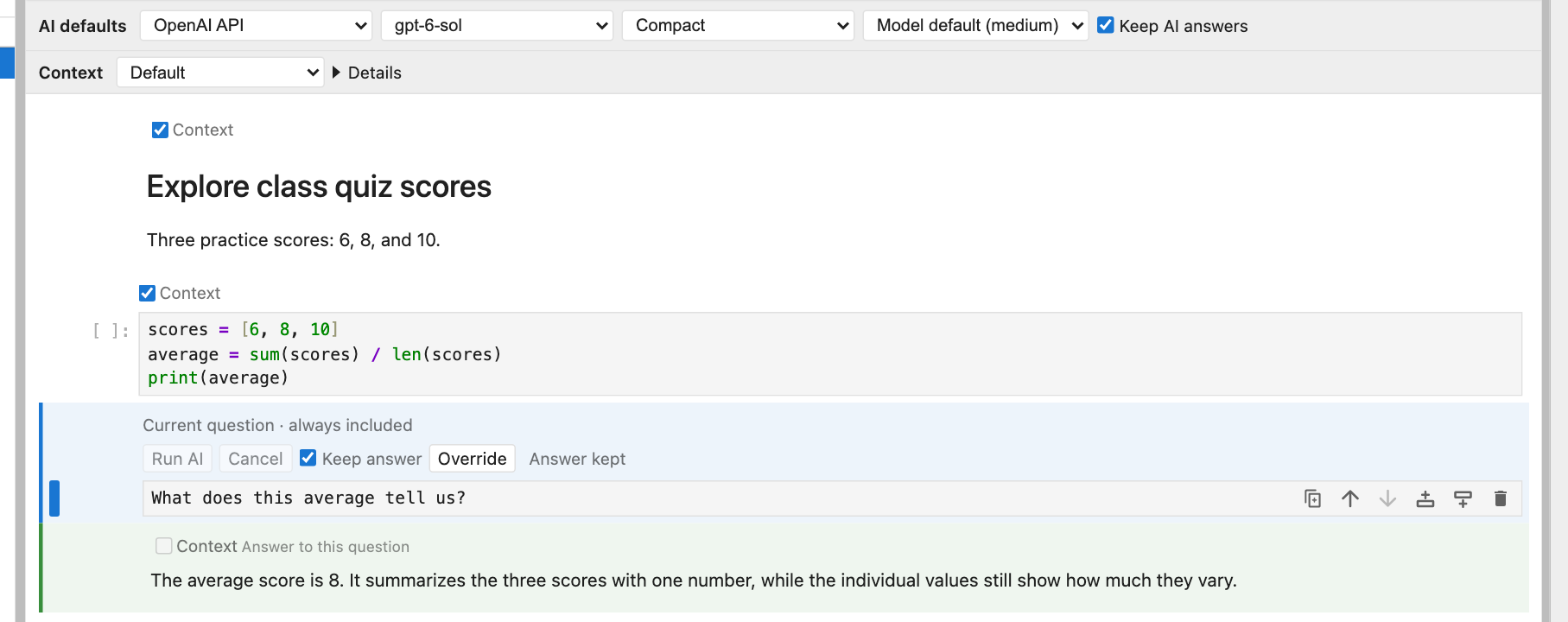
The notebook’s AI defaults row includes Keep AI answers, on by default:
| Notebook choice | When an AI prompt is executed |
|---|---|
| On | Keep its completed, nonempty answer without a provider request. A prompt without a completed answer can still run. |
| Off | Request a fresh answer, using the current context and settings. Useful while developing a notebook. |
Each prompt’s Keep answer checkbox shows its effective choice. New prompts inherit the notebook default. Changing the cell checkbox creates an explicit override: keep a particular answer while the notebook default is off, or rerun one prompt while the notebook default is on. Click Use notebook setting, shown when the cell has an explicit Keep override, to make it inherit again.
Notebook defaults and explicit cell choices survive saving and reopening. Explicit choices made in version 0.1.4 are preserved. The reset for provider/model/style/effort is separate from the Keep answer reset.
With a protected completed answer, Shift+Enter advances without a provider request, and Run AI is disabled. An unanswered prompt can still run; failed, cancelled, empty, or deleted answers can be retried. Keep AI answers is not a switch that disables all AI requests. Editing a protected prompt does not remove its protection.
Correct a mistake and continue
For a notebook under active development:
- Turn the notebook’s Keep AI answers off so unpinned prompts regenerate when executed.
- Edit the incorrect answer directly, or revise its prompt and rerun it.
- Turn Keep answer on for that specific prompt once you are happy with the answer. This pins your correction even while the notebook default remains off.
- Rerun the affected cells below in order. Unpinned AI prompts will use the corrected answer as history. Check for explicit Keep answer overrides on later prompts that you also want refreshed.
You can instead add an ordinary Markdown cell explaining a correction. Later AI prompts receive that note as context when it is above them.
A rerun updates the paired answer. It clears the previous answer as the new run starts, then writes the new response into that same answer cell. It does not append another answer each time. To keep an old answer for comparison, copy its text into an ordinary Markdown cell before rerunning.
Each run uses the notebook’s current context policy and cell choices, selected model, response style and kernel state. It is a new API request and can produce a different result. Editing an earlier cell does not automatically rerun later AI cells. If you change an earlier AI prompt, rerun it before continuing below so its saved answer matches its revised question.
Run a whole notebook or a range
Starting with 0.1.5, JupyterLab’s normal execution commands recognize AI prompts. Code and AI work complete in notebook order: an AI answer and its tool calls finish before the next selected cell runs. Each AI prompt uses its effective notebook/cell Keep answer choice.
| Action in JupyterLab | Behavior with nbinlineai |
|---|---|
| Shift+Enter, Ctrl+Enter, or the usual Run command | Executes selected cells; an AI prompt runs or keeps its answer according to its setting. |
| Run All Cells | Executes the notebook from top to bottom, including eligible AI prompts. |
| Run cells above or below | Applies the same behavior to that selected range. Earlier cells outside the range are not re-executed. |
| Restart kernel and run all | Recreates Python state, then follows the same AI rules. Kept answers are preserved, so any function calls from their original runs are not repeated. |
| Clear code outputs | Clears code-cell outputs, not AI Markdown answers or their Keep settings. |
| Execute a saved notebook without this JupyterLab extension, including headless execution | AI prompts and answers remain Markdown; the frontend AI execution hook is not active. |
Version difference: in 0.1.4 and earlier, native Run All only rendered AI cells as Markdown. AI requests required the extension’s Run AI button or its AI-specific Shift+Enter handler.
With the notebook default off, Run All can make a provider request for every eligible AI prompt and repeat any function calls it chooses. Keep answer on individual prompts protects the responses you want to preserve. A kept answer does not restore Python variables or replay its past tool side effects after a kernel restart; recreate required state with normal code cells, or deliberately rerun the relevant AI prompt.
An AI error or cancellation stops the remaining cells in that execution batch. Correct the problem and start another run when ready. Do not edit, move, or delete cells during a batch if you want a reproducible sequence.
Click Cancel to stop an active response. Cancelling does not undo function calls that have already changed your notebook state. A partial answer may remain; cancelled and failed answers are not used as completed conversation history.
Editing the text of a failed or cancelled answer does not turn it into a completed exchange. To provide that corrected text as context, copy it into an ordinary Markdown cell above the next prompt, or rerun the original prompt successfully.
Save the notebook normally to keep the prompt and answer text. Reopening it restores the cells and their saved choices. Python variables and functions are kernel state: after restarting the kernel, rerun the code that defines them.
Manual · Previous: Models, styles, and effort · Next: Choose notebook context