nbinlineai
AI prompts in JupyterLab notebooks
Choose notebook context
Manual · Previous: Edit, rerun, and run notebooks · Next: Live values and tools
The notebook toolbar shows Context, the notebook-wide mode, and Details. The AI question you click determines which request you are inspecting; each cell’s available checkboxes appear above its own content. You do not need a separate toolbar selection step before running a question.

Open Details when you want to inspect the question being previewed, inclusion counts, or available tools. Clicking an AI question or its linked answer sets that preview target. Clicking another cell’s Include in AI context checkbox retains it. Even Full notebook depends on the question: its own answer must be excluded, its text consumes budget, and only applicable tool declarations at or above it are available. With no question selected, Details explains how to choose one; the notebook-wide mode can still be changed.
Check context, inside Details, is optional. It recalculates the estimate without contacting the AI provider or regenerating an answer, for example after you change a Python value or function. You do not need to press it before Run AI or Shift+Enter: each run calculates its context automatically.
During the check, the button and status show Checking…. On success, Details shows Context checked, the cell/tool counts and the check time, even if the same cells still fit. A busy kernel or a failed check displays its reason instead of a success message. An edited notebook or changed settings make the earlier result stale; the time is an inspection aid, not a saved promise about the next run.
Choose the notebook’s Context mode
| Context | What it selects |
|---|---|
| Default | Automatically fits nearest earlier code, Markdown and completed AI pairs. Checked cells reflect the backend’s first-round estimate; a partially included cell has a mixed checkbox. |
| Full notebook | Eligible cells above and below the question, within the same budget. |
| All above | All eligible cells above, including independently selected AI question/answer source. |
| 10 above | The ten physical positions before the question, then eligibility and budget limits. |
| 10 above + below | Ten physical positions on each side, then eligibility and budget limits. |
| Custom | Your saved individual cell choices. |
| Current question only | No optional notebook text. The current question and enabled tools remain. |
The current question is always the required prompt. Every answer linked to it is excluded, wherever moved or duplicated. For the ten-cell windows, remove that question and its linked answers before counting. Raw, empty and otherwise ineligible cells still occupy positions: if the next ten cells contain two empty cells, the mode does not reach two cells farther to replace them. The generated answer never takes one of the ten below slots.
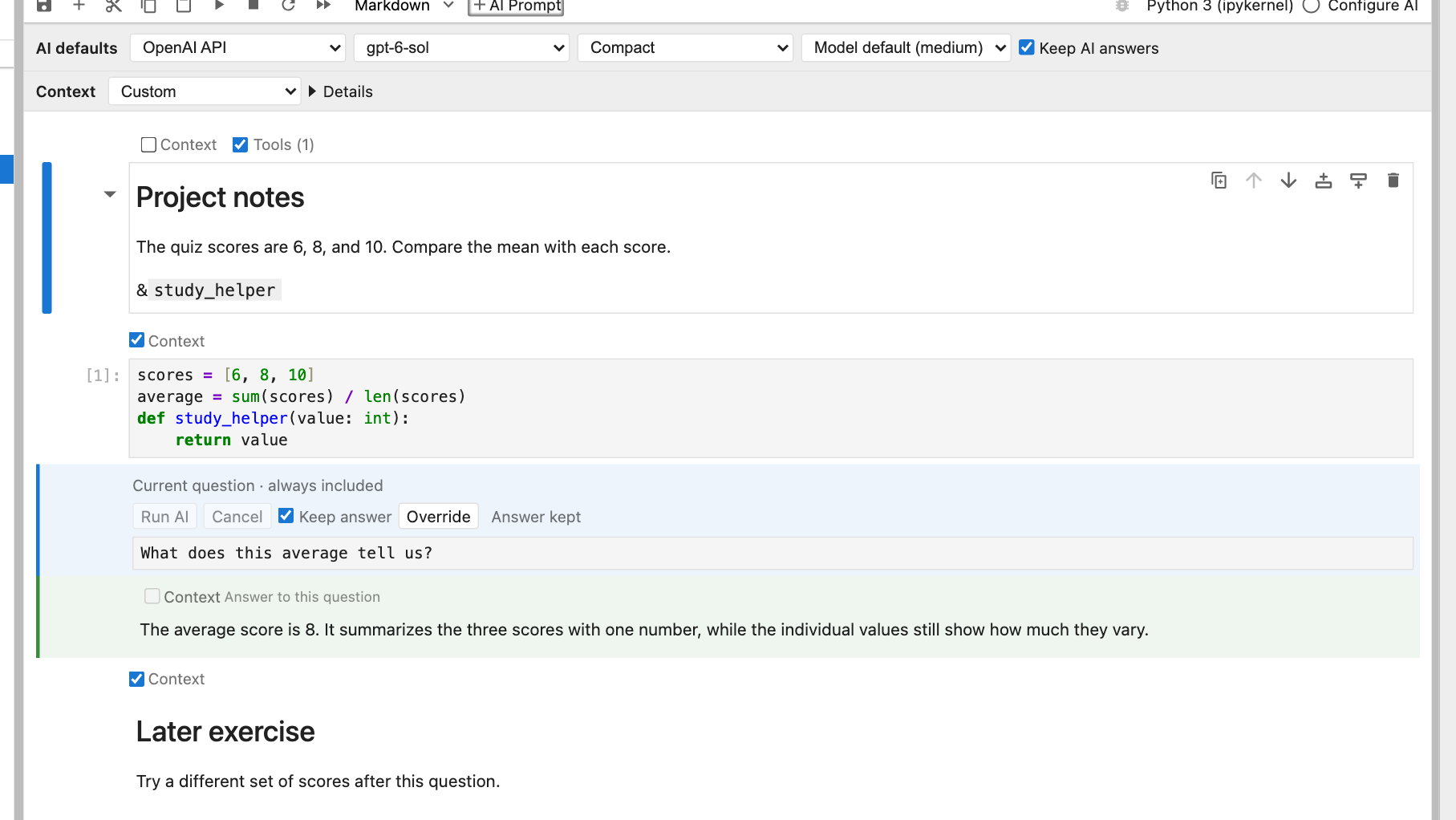
Illustration from an isolated demonstration notebook. Provider responses in documentation screenshots are simulated.
Choose individual cells
Code, ordinary Markdown, AI questions and AI answers have accessible Include in AI context checkboxes. After you click an AI question and its estimate is ready, Default checks included cells, shows a mixed mark for a partially included cell, and leaves excluded cells unchecked. Before a question is selected, or while Default has no estimate, the controls are disabled.
In explicit modes, a checked box means selected as a candidate. The adjacent partial or omitted by budget feedback tells you whether all of it fits. Controls sit above their own cell’s content, aligned with its text/editor. An AI answer’s Context control sits above that answer; answers have no Tools switch. An AI question’s Run/Cancel/Keep/Override row follows its Context line, still above the question text. Disabled controls explain ineligible cells and the current question’s answers. The current question has an always included label instead of a checkbox; its own answer is excluded.
Changing a checkbox in a preset switches to Custom and starts with the displayed selection. A mixed Default cell becomes a whole-cell candidate; budgeting can still keep only part. Switching to a preset preserves your Custom choices. Choosing Custom again restores them; the first time, it starts from the displayed set. If Default has no current estimate yet, use Details → Check context before initializing Custom, or first choose an explicit preset such as All above. Initial choices cover every existing cell, including empty/ineligible ones. An existing empty cell keeps its choice when filled; newly inserted cells default to included when eligible. Moves retain choices, and duplicates follow JupyterLab’s metadata copying.
Mode and Custom choices save with the notebook. The preview target, estimates and computed Default checks are temporary. Opening, rendering, selecting and previewing do not change the saved notebook.
Checking a cell again does not automatically leave Custom, even if the selection matches a preset. Choose Default in the notebook’s Context dropdown to restore automatic selection, or choose another preset there. Your stored Custom choices remain available when you return to Custom.
Understand AI history and source
Both cells of a completed earlier AI pair must be selected and above the current question to form conversation history. The pair stays whole under budgeting. In explicit modes, a selected question or completed answer on its own is labeled AI notebook source, including its role, linked ID and position. AI material below the question, including complete pairs, is also labeled source; it is never presented as a prior conversation. Default preserves the earlier pair-only behavior.
Running, failed, cancelled and orphaned answers remain ineligible. Code outputs, plots, image pixels, attachments and raw-cell text are excluded. Ordinary Markdown is source text: a link or image reference does not fetch the linked content. No code is run merely because its checkbox is checked.
Preview and limits
Preview shares the backend’s actual context selector. It accounts for current live references and function descriptions, makes no provider request, calls no offered tool body and inserts no answer. It needs an existing idle Python kernel; missing definitions or a busy/unavailable kernel leave the precise estimate pending. Introspection can evaluate an object’s Python representation, so preview is not a promise that arbitrary user-defined introspection has no effects.
Edits, mode/target changes and kernel changes invalidate old estimates. Use Details → Check context if you want to inspect an updated estimate after live state changes. A preview is only a first-round estimate: every run takes a fresh snapshot when its queued turn starts, independently of the preview target. Run All does this separately for each question. Later tool calls and results can leave less room for notebook text; the run status reports that trimming.
Every mode uses the shared 64,000-character estimate. Tools, instructions, expanded current question and completed tool traffic take priority. Remaining material is considered nearest first, with above winning distance ties. A boundary source cell retains its end above the question or its beginning below; history pairs remain whole. Full notebook does not mean unlimited capacity, and characters are not exact model tokens. See budget details.
Why a selected cell may be missing
Context has two steps. First, the mode chooses candidates from the live notebook: Default and All above look above the question; Full notebook can also look below; the ten-cell modes count physical positions; Custom uses your saved checkboxes. The current question is always included. Its own answer, raw or empty cells, and unfinished or orphaned AI answers are ineligible. Default treats earlier completed AI questions and answers as whole conversation pairs; an explicit mode can select an individual AI cell as labeled notebook source. Tools is separate: enabled declarations in the current or earlier Markdown/AI questions are discovered before text is trimmed, even if the declaration note is not chosen as Context. Only the current question’s $ references read live Python values.
Second, each provider round spends the 64,000-character host budget on instructions, the expanded question, tool descriptions, and any completed notebook-tool calls/results. It then tries candidate source and whole earlier AI pairs nearest to this question, with above winning a distance tie. The first source cell that does not fit can contribute its nearest end (above) or beginning (below); an AI pair is never split. Selection stops there, so a smaller but more distant cell is not substituted. Retained source is sent in notebook order and completed pairs in conversation order. A later round can omit more earlier context because tool results take space, but the tool effects are not repeated.
| Connection | How the same candidate cells are measured |
|---|---|
| OpenAI API and Claude API | Both use the same normalized message and tool-schema character estimate. With the same question, style, tools, and earlier tool results, their first-round cell selection normally matches. Each provider still converts and limits its actual model request differently. |
| ChatGPT subscription | Uses the same candidate and nearest-first rules, but measures its escaped runtime payload, structured schema, notebook-location context, and a fixed protocol metadata reserve. The actual submitted envelope is checked too. It can therefore fit a different amount of optional notebook text. Codex internal inference or recovery calls are outside this host-submitted estimate. |
For illustration, suppose the fixed material leaves roughly 14,000 characters on an API round. A nearby 9,000-character code cell fits, and about 5,000 characters of the next, older note may fit after labels and escaping. If the ChatGPT request framing leaves about 10,000 characters instead, the same code cell fits but only a small part of that note may remain. Adding declared tools or receiving a large notebook-tool result reduces the space again for all connections. These amounts are illustrative, not promised cutoffs or model token counts.
In Default, the checkbox reflects the first-round fitted estimate: checked means included and mixed means partial; an older box may appear unchecked because it did not fit. In Full notebook, All above, the ten-cell modes, and Custom, checked means selected as a candidate; a separate “omitted by budget” or “partial” label reports what the first round could send. Budget trimming never changes saved contextInclude choices or unchecks them in notebook metadata. Details → Check context refreshes this estimate without calling a provider; the run recalculates it, and later tool rounds may differ.
Choose text and tools separately
Context chooses a cell’s text. Markdown and AI question cells containing tool declarations also have a Tools checkbox, labeled Use tools from this cell. Tools default to on, even when that cell’s text is unchecked, outside a window or omitted by budget. The header lists the tools actually available for the target question separately.
Uncheck Tools to stop that cell declaring functions. This is a saved per-cell choice, independent of Context mode. If another enabled cell declares the same tool, that other declaration still makes it available; see the duplicate-declaration example. The current question’s own declarations can also be turned off; its required question text stays included. New declaration cells default to enabled. Code, raw cells and AI answers never declare tools.
Current question only deselects all optional notebook text while retaining your Tools choices. It does not re-enable tools you deliberately turned off. This makes it possible to ask a question with tools but no surrounding source. Default’s automatic budget trimming never disables a tool.
Only enabled declarations in the current question or earlier ordinary Markdown/AI questions apply. A saved Tools choice below the target does not make that tool available here, even if Full notebook selects its text. Only $ references in the current question read live values.
A referenced variable or function may have been created below the question, run out of order, or come from a deleted cell. Context choices do not reset Python state. Explicitly offered read tools can retrieve other text during a run. Keep answer continues to control execution; it does not decide which completed answers may be selected as context.
Manual · Previous: Edit, rerun, and run notebooks · Next: Live values and tools