nbinlineai
AI prompts in JupyterLab notebooks
Write and run AI questions
Manual · Previous: Install and connect · Next: Models, styles, and effort
- Select the cell after which you want to ask a question.
- Click + AI Prompt in the notebook toolbar.
- Write your prompt, for example:
Explain the code above and suggest a simpler approach. - Check the AI defaults row below the notebook toolbar. The cell inherits these settings unless you use its Override control.
- Press Shift+Enter or click Run AI.
The answer streams into a separate Markdown cell, normally created immediately below the prompt. Keep answer starts on: the first run is allowed, and a completed answer is then protected from accidental repeat requests. Ordinary code cells keep their usual execution behavior.
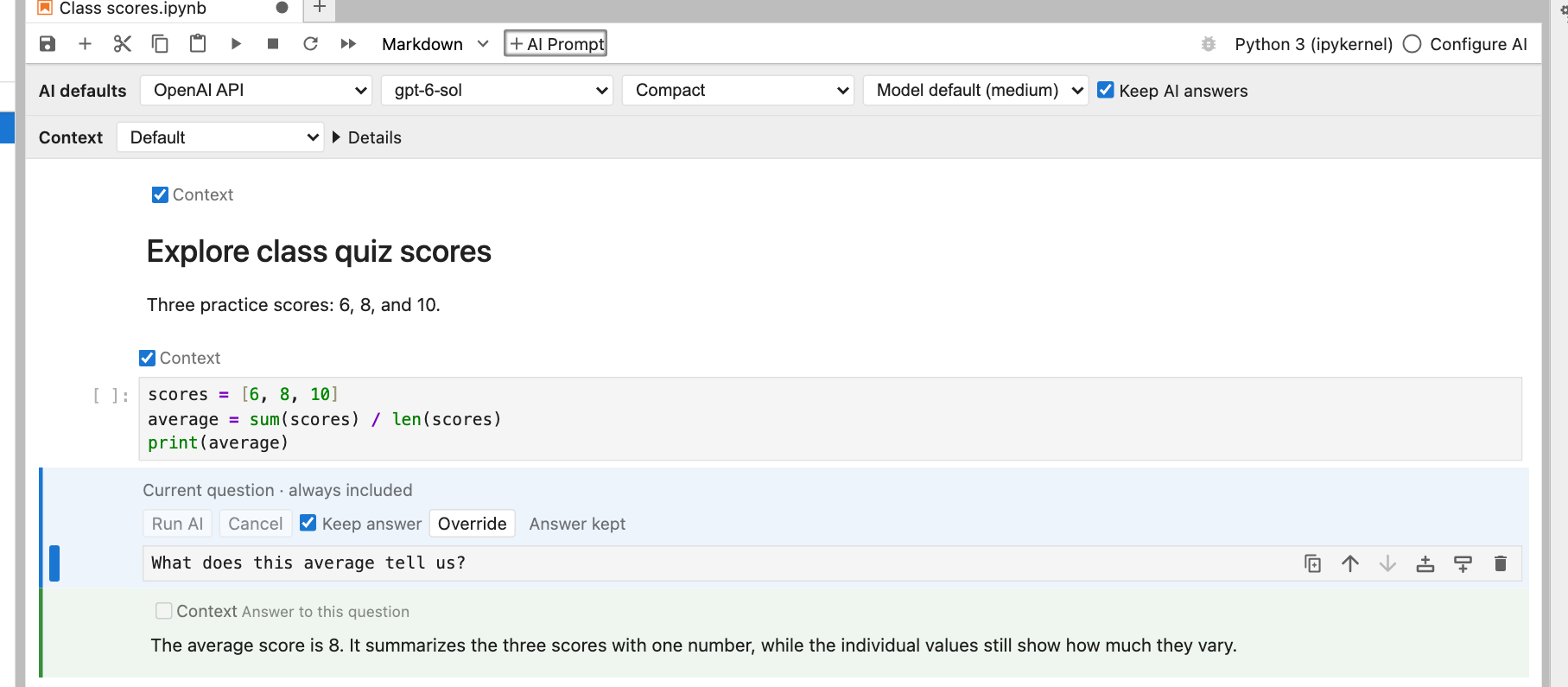
An active Python kernel is required. Running an individual AI prompt does not automatically run the code above it; run the definitions first before referring to live values or functions. Run All Cells executes earlier code before reaching the AI prompt.
Recognize questions and answers
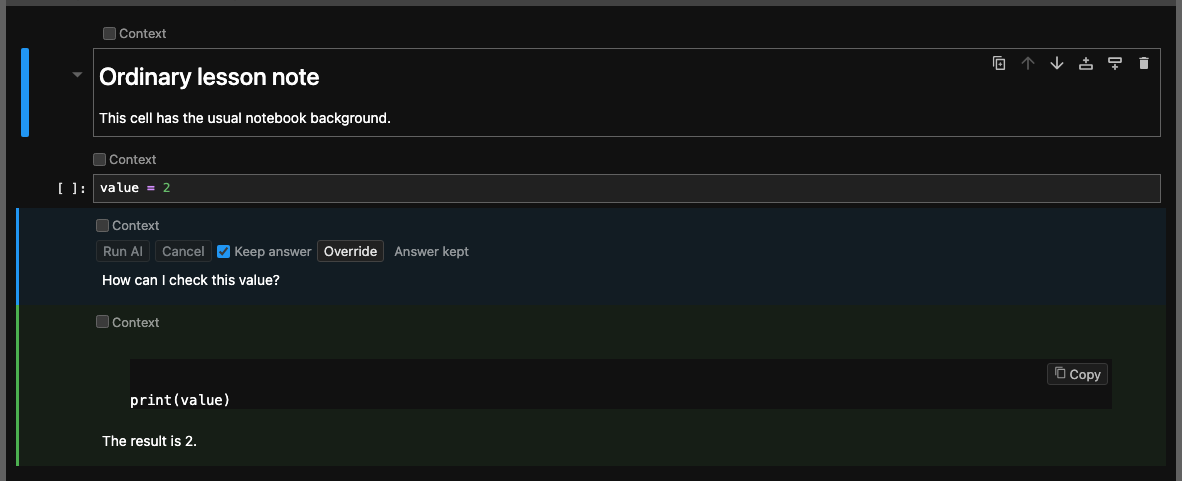
AI questions have a subtle blue background and answers have a green background, with matching left borders. The colours adapt to JupyterLab’s light and dark themes. Editors and fenced code blocks retain JupyterLab’s normal editing colours. Both cells remain ordinary editable Markdown.
Start a question
An empty AI question shows four small suggestions: Explain cell above, Explain code above, Explain section above, and Write code…. Click one, or reach it with Tab and activate it with Enter, to insert ordinary text into the question editor. Then edit the text to suit your task and run the question when ready.
The suggestions disappear once the question contains text, and return if you clear it. You can ignore them and type your own question. Displaying a suggestion does not save prompt text or send an AI request; choosing one inserts text but does not run it. Write code… inserts Write code to so you can complete the request.

Copy code from an answer
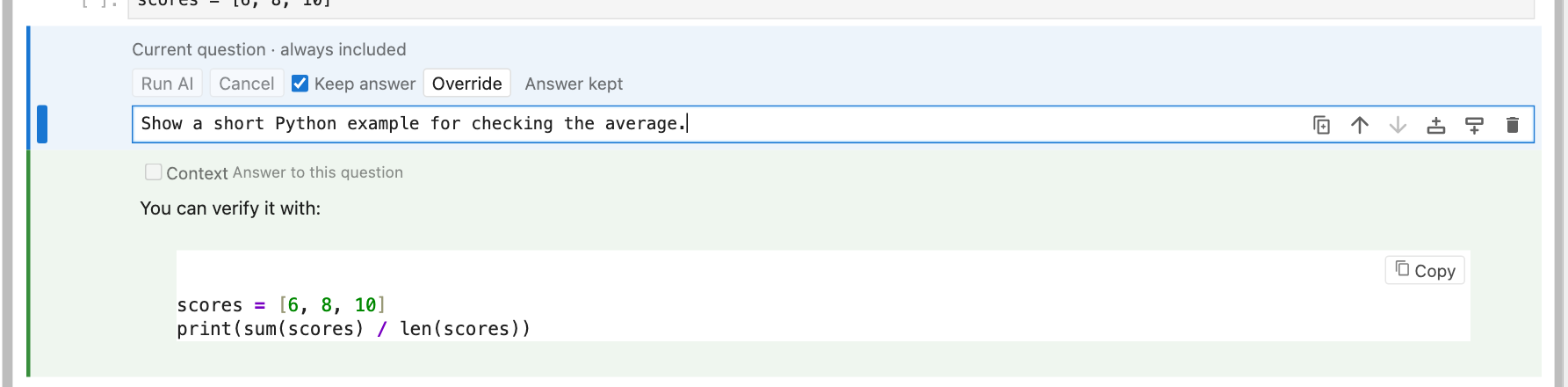
Code blocks in rendered AI answers have a Copy code button. Click it, select or create an ordinary code cell, then paste with your usual keyboard shortcut. The button copies the code text without the surrounding Markdown fences. Review and run the pasted code yourself; clicking Copy never executes it.
The same button is available for short snippets in Learning mode. It is interface decoration: it is not stored in the notebook’s Markdown or sent as AI context. If clipboard access fails, the interface tells you; select the code and copy it manually instead.
Ask for a new code cell
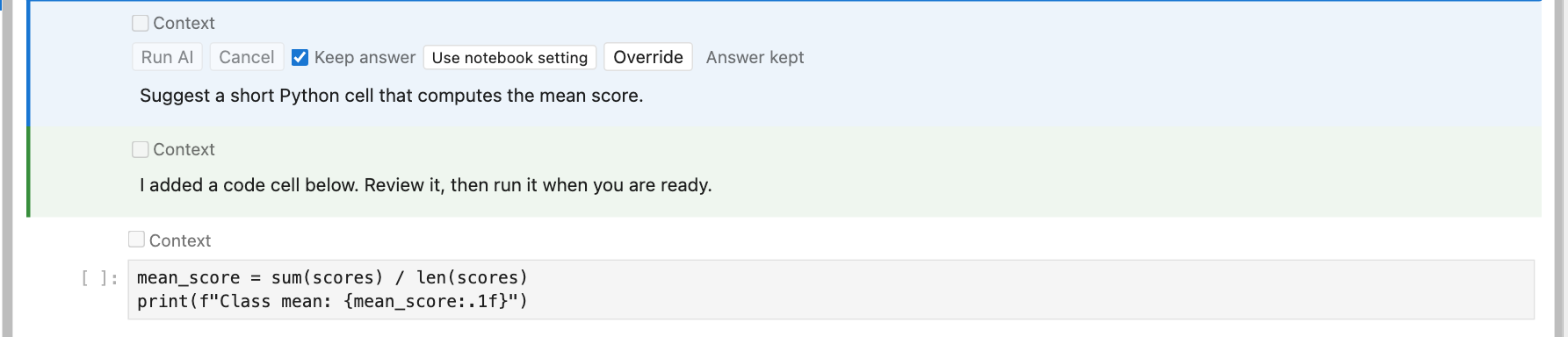
The bundled insert_code tool can put generated code into its own ordinary code cell while keeping the AI answer. Run this import first:
from nbinlineai.tools import insert_code
Put &`insert_code` in an ordinary Markdown note above your question, then ask:
Write code to plot these results and insert it into a new code cell below your answer. Explain briefly what it does.
The default order is question → answer → code. The new code is editable and unexecuted; review it and run it when ready. insert_markdown works the same way for a separate Markdown note. Once a tool is declared above, later questions can request it in ordinary language without repeating the reference. See the insertion FAQ, examples guide, and tools reference.
Manual · Previous: Install and connect · Next: Models, styles, and effort