nbinlineai
AI prompts in JupyterLab notebooks
AI conversations inside your notebook
nbinlineai adds AI prompt cells to JupyterLab. Ask about the code and notes above a cell, refer to live Python values, and let a model call functions you explicitly name. Prompts and answers stay in the notebook as readable Markdown.
New in 0.1.14: choose a default connection for notebooks without saved choices, keep cell provider choices inherited unless explicitly overridden, and see a clean waiting answer cell before text streams in.
Start here
- Install nbinlineai from JupyterLab’s Extension Manager, then restart the whole Jupyter server.
- Open a Python notebook and use Configure AI to sign in with ChatGPT or save an OpenAI or Anthropic API key. Set Default connection for new notebooks there if you want a user preference.
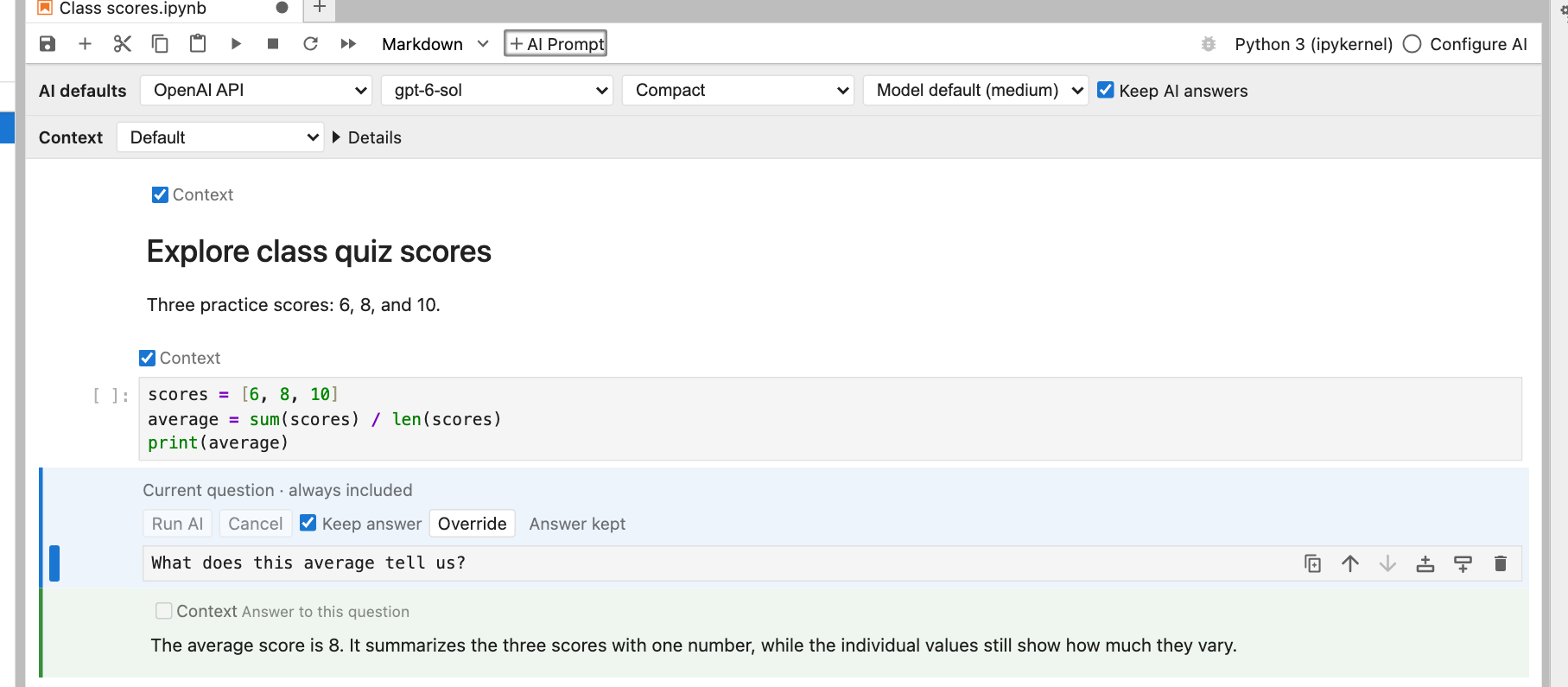
- Choose this notebook’s connection, model, and style in AI defaults. Individual cells inherit them unless overridden.
- Click + AI Prompt, write a question, and press Shift+Enter.
For a uv project:
uv add jupyterlab nbinlineai
uv run jupyter lab
User guide chapters
The user guide index shows the reading order. Open the chapter you need:
- Install and connect — install, sign in with ChatGPT, or save an API key.
- Write and run AI questions — prompts, answers, code copying, and insertion.
- Models, styles, and effort — notebook and cell choices.
- Edit, rerun, and run notebooks — Keep answer, corrections, and Run All.
- Choose notebook context — cell choices, previews, and provider budgets.
- Live values and tools — kernel references and declared functions.
- Saved notebooks and privacy — cells, keys, and account state.
- Troubleshooting and limits — common failures and size limits.
Read more
| Guide | What you will find |
|---|---|
| User guide index | The reading order and links to all eight chapters. |
| Tools reference | Import and declare tools; check the 51 functions, groups, and limits. |
| Examples guide | Try task walkthroughs and downloadable teaching notebooks. |
| FAQ | Run All and cell toggles, correcting answers, kernel loss, restarts, cancellation, and other edge cases. |
| Architecture | How the browser, Jupyter Server, notebook kernel, and model provider work together; saved data and tool schemas. |
| Development | Set up with uv, build the extension, run the tests, and maintain these docs. |
New in version 0.1.14
- Set Default connection for new notebooks in Configure AI. Cells now visibly inherit their notebook’s connection unless you explicitly choose another provider for that question; selecting only a cell model does not pin the provider.
- Empty AI answer cells hide JupyterLab’s Markdown instruction placeholder while waiting for the first streamed response text.
Added in version 0.1.13
- Use a ChatGPT subscription for inline questions through a connection owned by the Jupyter server. Sign in through a browser or device code, inspect account models and usage, then choose Use for this notebook. No separate Codex installation or API key is needed for this connection.
- ChatGPT and API billing stay separate. Saved notebook choices remain explicit when a connection or model becomes unavailable; there is no automatic switch to an API provider.
- The notebook owns submitted context, declared tools, Keep answers, execution order, and cancellation. Built-in ChatGPT file, shell, and browser actions are off; enabled notebook tools keep their normal Python permissions.
Added in version 0.1.12
- The 51 optional tools keep the eight task groups and 19-tool starter note. Source and saved-notebook search now use bounded Python matching with nested ignore rules; Markdown and Python outlines have copied addresses that expire after any file change.
- Four 0.1.11 syntax search/rewrite tools are deferred. The 0.1.11 native search and document dependencies are replaced with
pathspecandmarkdown-it-py.
Added in version 0.1.11
- Search saved project files and notebooks, inspect static Python source documentation, navigate document sections, and make checked text edits.
- Find and edit ordinary cells in the live notebook by stable ID, including unsaved and offscreen cells. Edits do not execute or save them automatically.
- Extract a public web-page section, inspect live values or skill descriptions, trace a live function, and run bounded shell or Python subprocesses with kernel-user permissions.
- Try the disposable project notebook.
Added in version 0.1.10
- Questions and answers have distinct backgrounds that adapt to light and dark themes.
- Empty questions offer editable starters. Shared instructions and cell-position landmarks help focus explanations on the requested cell while retaining useful earlier context.
- Offer
insert_codeto let the AI add an ordinary, unexecuted code cell below its answer. The question and answer remain intact. - Try the Jupyter AI + nbinlineai example, and read the FAQ for tool-registration, insertion, prompt starters, and coexistence details.
Added in version 0.1.9
The Context toolbar now shows just the notebook mode and Details, with one disclosure arrow. Question-specific information and the optional Check context action are inside Details. A check shows progress, then cell/tool counts and a completion time, or a visible failure reason. Running an AI question always calculates context automatically.
Each cell’s Context/Tools controls now sit above its content, aligned with the text. AI question controls move above the question too, and the current question is plainly labeled as always included.
Added in version 0.1.8
Version 0.1.8 adds selectable notebook context.
- Choose Default, Full notebook, All above, 10 above, 10 above + below, Custom or Current question only, with separate text/tool checkboxes and an authoritative first-round preview.
- Save Custom choices while keeping inherited tools independent of selected text. Try the context-selection example.
In version 0.1.7
- Declare tools once in ordinary Markdown or an AI question; later AI questions inherit them, even when the declaration text no longer fits in context.
- Keep the nearest preceding notes, code, and complete AI exchanges within a shared character budget, after accounting for tools and the current question.
- See when context was trimmed, and try the updated examples with shared declarations and real function calls.
Notebook conversations
- Set provider, model, style, and effort once per notebook, with optional cell overrides.
- Edit the built-in Compact, Full, and Learning instructions in Configure AI.
- Choose Keep AI answers once per notebook, with optional cell overrides. Turn it off during active development and pin answers you want to preserve.
- Run code and AI cells in order with JupyterLab’s normal Run All Cells command. Manually corrected answers become context for later prompts when they run.
ChatGPT subscription use has account limits and may use additional credits. OpenAI and Anthropic API requests are billed separately by those providers.
Install from PyPI · Source on GitHub · Report an issue
Licensed under GPL-3.0-only, matching ai-jup.